When you scan a paper document or receive a PDF that won’t let you highlight or copy text, you’re dealing with an image-only file. This means the PDF contains a picture of text rather than actual text data. You might notice this problem when you try to search for a word in the document and nothing happens, or when you attempt to select text with your mouse and can’t.
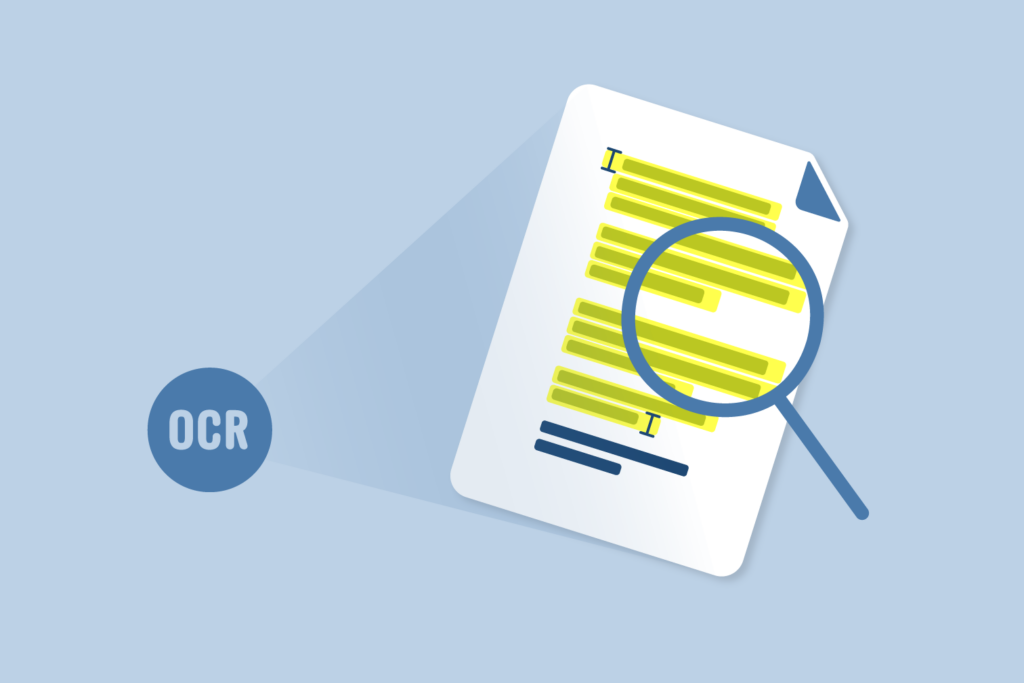
You can make a PDF selectable by using OCR (Optical Character Recognition) technology, which converts the images of text in your PDF into real, selectable text. This process works through software that scans the visual appearance of letters and numbers in your document and translates them into actual text data. Several free and paid tools can do this for you.
Making your PDFs selectable improves how you can work with your documents. You’ll be able to search for specific words, copy text to other programs, and use screen readers if needed. The process takes just a few minutes and can save you hours of manually retyping information from your files.
Post Contents
Understanding Selectable PDFs and Searchable Text
A selectable PDF contains real text that you can highlight, copy, and search through, while image-only PDFs display content as flat pictures without recognizable characters. The ability to select and search text directly impacts how accessible and useful your PDF files are for daily tasks.
What Is a Selectable PDF?
A selectable PDF is a document where the text exists as actual characters rather than images. When you click and drag your mouse across the text, you can highlight individual words and sentences. You can also copy this text and paste it into other applications like Word or email.
PDFs created directly from programs like Microsoft Word or Google Docs are automatically selectable. The software embeds the text data into the PDF file format. You can test if your PDF is selectable by trying to highlight a word with your cursor or by pressing Ctrl+F (Windows) or Command+F (Mac) to open the search function.
Difference Between Selectable, Searchable, and Image-Only PDFs
Selectable PDFs let you highlight and copy text directly from the document. Searchable PDFs go one step further by allowing you to use the Find command to locate specific words throughout the entire file. Most selectable PDFs are also searchable by default.
Image-only PDFs come from scanned documents or screenshots. These files show your content as a single flat image with no text data underneath. You cannot highlight words, search for phrases, or copy content from these files without first converting them.
Here’s how they compare:
| PDF Type | Select Text | Search Text | Copy Text | Created From |
| Selectable | Yes | Yes | Yes | Digital documents |
| Searchable | Yes | Yes | Yes | Digital documents or OCR-converted scans |
| Image-Only | No | No | No | Scanned documents, photos, screenshots |
Why Searchable PDFs Matter for Accessibility
Searchable PDFs are essential for screen readers that help visually impaired users access digital content. Screen readers convert text to speech, but they cannot read image-only PDFs because there’s no text data to process. Without searchable text, these users cannot access your document’s information.
ATS (Applicant Tracking Systems) also require searchable PDFs to scan resumes and applications. These systems extract text to match candidates with job requirements. An image-only resume will fail to process correctly, potentially removing you from consideration.
Searchable PDFs also improve your workflow efficiency. You can quickly locate specific information in long documents instead of manually scanning every page. This saves time when working with contracts, reports, or research papers.
Identifying If a PDF Is Selectable or Image-Only
Not all PDFs work the same way—some contain selectable text while others are just flat images. You can quickly test whether your PDF has a text layer or needs processing before you can select, copy, or search through its content.
How to Check for Selectable Text in a PDF
Open your PDF file and try to click and drag your cursor across any text on the page. If you can highlight individual words and letters, the PDF contains selectable text. If your cursor creates a blue box around the entire area instead of highlighting specific words, you have an image-only PDF.
You can also try right-clicking on the text. If you see options like “Copy” or “Select All,” the text is selectable. If these options don’t appear, the file is likely a scanned PDF without a text layer.
Another quick test is to press Ctrl+A on Windows or Command+A on Mac to select all content. Watch what happens—selectable text will highlight in blue, while image-only PDFs won’t show any text selection at all.
Testing Search Functionality
Press Ctrl+F on Windows or Command+F on Mac to open the search box. Type a word that appears in your document. If the search finds and highlights the word, your PDF has selectable text. If the search returns no results even though you can see the word on the page, you’re working with an image-only file.
You can also try copying text and pasting it into a text editor like Notepad. Open any page in your PDF, select what looks like text, and press Ctrl+C to copy. Then paste it into Notepad. If readable text appears, your PDF is selectable. If nothing pastes or you see gibberish, the file needs OCR processing.
Recognizing Scanned PDFs With No Text Layer
Scanned PDFs are created when you scan paper documents into digital format. Your scanner captures each page as a flat image, which means there’s no hidden text layer for your computer to recognize. These files look like regular PDFs but don’t support text selection or search.
Check the file properties or creation method. If the PDF was created from a scanner or camera, it’s probably image-only. These files typically have larger file sizes than text-based PDFs because they store full-page images.
You’ll need OCR technology to convert these scanned PDFs into searchable documents. OCR reads the text in the images and creates a hidden text layer behind each page, making the content selectable and searchable.
How to Make a PDF Selectable Using OCR Technology
OCR technology converts images of text into machine-readable content that you can select, search, and edit. Running OCR on your PDF creates a text layer over the scanned image, making every word selectable and functional.
What Is Optical Character Recognition (OCR)?
Optical character recognition is technology that analyzes images and identifies characters and words to create digital text. When you scan a paper document, your scanner captures it as a flat image without any recognizable text data.
An OCR engine reads the visual patterns in these images and converts them into actual text characters. The software examines each letter, number, and symbol to determine what it represents. Once the OCR tool processes your document, it adds a transparent text layer on top of the original image.
This text layer is what makes your PDF selectable. You can now highlight words, copy passages, and search for specific terms. The original image stays intact underneath, so your document looks exactly the same.
Converting Image-Only PDFs Into Searchable Documents
You need to run OCR on your PDF to convert it from an image file to a selectable document. Most PDF OCR software offers straightforward tools for this process.
Upload your PDF to an OCR tool through your web browser or desktop application. The software will analyze each page and recognize text automatically. Some programs let you choose output quality settings before processing.
Adobe Acrobat provides built-in OCR software through its Recognize Text feature. Open your document, go to Tools, select Recognize Text, and choose Searchable Image as your output style.
Free online OCR tools like Sejda also work well for basic needs. Upload your file, wait for processing to complete, and download your converted PDF with selectable text.
Best Practices for Running OCR on PDFs
Start with the highest quality scans possible. Clear, high-resolution images produce better OCR results because the software can more easily recognize text.
Keep these guidelines in mind:
- Use at least 300 DPI resolution when scanning documents
- Make sure pages are straight and not skewed
- Avoid dark shadows or glare on the paper
- Choose files with clear, readable fonts
Check your results after the OCR engine finishes processing. Select random sections of text to verify accuracy. Some characters might be misread, especially with poor image quality or unusual fonts.
Save your processed file with a new name to keep your original. This gives you a backup if you need to run OCR again with different settings.
Popular Tools and Methods for Creating Selectable PDFs
Adobe Acrobat Pro leads the market for professional PDF conversion, while online OCR platforms offer quick solutions for occasional users. Mobile apps provide on-the-go scanning capabilities, and batch processing tools handle large-scale document conversions efficiently.
Making PDFs Selectable With Adobe Acrobat
Adobe Acrobat Pro gives you comprehensive control over PDF text recognition through its built-in OCR engine. You can process documents directly within the program without uploading files to external servers.
To use OCR in Adobe Acrobat, open your PDF file and select the “Scan & OCR” tool from the right-hand panel. Click “Recognize Text” and choose whether to process the current file or multiple files. The software automatically detects the document language and converts image-based text into selectable content.
Adobe Acrobat Pro maintains formatting accuracy better than most alternatives. It preserves fonts, spacing, and layout during text recognition. You can also edit recognized text directly within the program.
Adobe Scan offers a mobile solution for creating selectable PDFs from paper documents. The app captures images with your phone camera and automatically applies OCR processing. Your scanned files sync across devices through Adobe’s cloud service.
The main drawback is cost. Adobe Acrobat Pro requires a monthly subscription, which may not suit users who only occasionally need OCR capabilities.
Using Online OCR Platforms
Online OCR tools let you convert PDFs without installing software. You upload your file, wait for processing, and download the selectable version. These platforms work on any device with internet access.
SearchAblePDF stands out for its simple interface and fast processing speeds. You drag your PDF onto the website, and it converts the PDF to selectable text within seconds. The service supports over 25 languages and maintains reasonable formatting accuracy.
Most online platforms have file size limits. Free versions typically restrict you to files under 10-15 MB. You’ll need paid plans for larger documents or bulk conversions.
Security matters when using online tools. Your documents upload to external servers during processing. Avoid using free online OCR services for sensitive or confidential information. Check each platform’s privacy policy and data retention practices before uploading.
Mobile Apps for PDF OCR
Mobile OCR software turns your smartphone into a portable document scanner. These apps use your phone’s camera to capture documents and apply text recognition on the spot.
Popular options include Microsoft Lens, Google Drive’s built-in scanner, and specialized OCR apps. Most handle standard documents well, though lighting conditions affect recognition accuracy.
Mobile apps excel at quick captures when you need immediate results. You can scan receipts, business cards, or notes and have searchable text within seconds. The files save directly to your phone or cloud storage.
Camera quality impacts results significantly. Steady hands and good lighting produce better text recognition. Many apps include guides to help you align documents correctly before capturing.
Batch Processing and Advanced Features
Batch processing converts multiple PDFs at once instead of handling files individually. This feature saves substantial time when you work with large document collections.
Adobe Acrobat Pro includes batch OCR through its Action Wizard. You set up processing rules once and apply them to entire folders. The software runs through files automatically while you work on other tasks.
Advanced OCR software offers custom dictionaries for technical terms or industry-specific vocabulary. You can train the software to recognize specialized fonts or unusual document layouts. These features improve accuracy for complex documents.
Some tools provide output format options beyond PDF. You can convert recognized text to Word, Excel, or plain text files. This flexibility helps when you need to repurpose content across different platforms.
Editing, Saving, and Exporting Your Searchable PDF
Once you’ve made your PDF searchable, you can modify the content, change file formats, and save your work in different ways. You can edit text and images, convert files between formats, and share your documents while keeping them searchable.
Converting Between PDF and Other Formats
You can use a PDF to Word converter to change your searchable PDF into an editable Word document. This is helpful when you need to make major changes to the text or layout. Most online converters let you upload your PDF file and download a Word version in minutes.
When you convert PDF to Word, the text stays searchable in the new format. You can edit the content in Word and then save it back as a PDF. The searchable text will remain intact after you convert it back.
You can also merge PDF files while keeping them searchable. This lets you combine multiple searchable documents into one file. The search function will work across all pages in the merged document.
Editing Text and Images in a Selectable PDF
You can edit PDF files directly in programs like Adobe Acrobat without converting them first. Click on the edit tool to select and modify text, change fonts, or adjust spacing. You can also add, remove, or resize images in your document.
Some PDF editors let you rotate PDF pages if they’re in the wrong direction. You can also compress PDF files to make them smaller for easier sharing. This reduces file size without removing the searchable text layer.
To protect PDF content, you can add passwords or restrict editing permissions. These security features work alongside the searchable text. People can still search the document but can’t make changes without your permission.
Saving and Sharing as a Searchable PDF
After editing your document, save it with a clear file name that describes the content. Choose the Save As option to create a new version and keep your original file unchanged. This gives you a backup in case you need to go back to the earlier version.
You can sign PDF documents electronically before sharing them. Most PDF tools let you add a digital signature without losing the searchable text feature. This is useful for contracts and official documents.
When sharing your file, check that the searchable text is still working. Open the PDF and press Ctrl+F (or Command+F on Mac) to test the search function. If you can find words using the search box, your PDF is ready to share.