Camera users panic when photos disappear after transfers, formatting, or card errors. On Macs, missing files often remain present, but their indexes change first. That early gap makes memory card recovery Mac possible before the overwrite begins. However, repeated saves can replace hidden sectors and reduce recovery success.
Many users try random fixes first, then make restoration much harder. A safer SD card recovery workflow starts by stopping all writes immediately. Then, the recovery software scans file traces, previews, and folders for recoverable media. This guide shows Mac methods for restoring lost memory card files.
Post Contents
Signs Your Memory Card Recovery on Mac is Needed
The following signs show when your Mac memory card needs recovery. Act to restore data from the memory card before the damage gets worse.
- Missing Photos: Photos or videos disappear, even though you saved them earlier. This often means the card index changed, not the files.
- Empty Folders: Your folders open, but they show nothing inside on Mac. The files may still exist, but the links are broken.
- Read Errors: Your Mac shows errors when opening files from the card. Some files may open partly, then stop or freeze suddenly.
- Wrong Sizes: A photo shows the wrong size or shows zero bytes. This can mean file details are damaged, but data remains.
- Strange Names: File names change into random letters, numbers, or odd symbols. This is a common sign of card directory problems starting.
- Card Not Detected: Your Mac cannot read the card or asks to format. Do not format it yet, because recovery chances may drop.
Preparing Your Memory Card for Recovery on Mac
Before you run any “memory card memory recovery software”, prepare the memory card carefully first. This step protects remaining files and improves your chances of successful recovery.
- Stop Using the Card to Avoid Overwriting Data
Stop using the memory card immediately after you notice missing files. Deleted items often remain recoverable until new photos, videos, or transfers overwrite those same storage blocks. So, remove the card from your camera or device right away. Do not save edits, backups, or previews back onto the same card.
- Safely Eject and Reconnect the Card Using a Reader
Use a reliable card reader to connect the memory card to your Mac. Before removing the card from any device, eject it safely to avoid file system damage. Then reconnect it and check whether it mounts normally. If the card disconnects often, test another reader, adapter, or USB port first.
- Check Card Health Using macOS Disk Utility
Afterwards, access Disk Utility and select the memory card from the sidebar. Next, confirm the card shows the correct size and file system details. Moreover, you can run “First Aid” to check basic directory issues but avoid erase or format options. If the card stays unreadable, stop troubleshooting and begin recovery scanning instead.
Memory Card Recovery: Fixes and Step-by-Step Methods
Memory card problems happen for different reasons, so one fix rarely works for everyone. So, try the methods below in order to protect files and improve recovery chances:
Fix 1: Repair Corrupted Memory Cards Using Disk Utility’s First Aid
Disk Utility First Aid helps fix minor file-system corruption after unsafe ejection, transfer interruptions, or mounting errors. It checks directory structure, repairs basic metadata issues, and may restore card access without extra tools. For early-stage troubleshooting on macOS, this is a safe starting point in a memory card recovery Mac workflow before deeper scanning begins. Follow teh steps mentioned below to run First Aid safely before trying recovery software:
Step 1. To start, insert the memory card into a reliable card reader first. Then connect the reader to your Mac using a stable port.
Step 2. Next, access the “Disk Utility” from “Application> Utilities” on your Mac.
Step 3. Afterwards, in the left sidebar, select the memory card volume carefully. Then confirm the correct card name before running any repair action.
Step 4. Later, press the “First Aid” in the top toolbar to start checking. Next, confirm the prompt, then let Disk Utility scan and repair errors.
Step 5. Lastly, read the result message after First Aid finishes processing. Check whether macOS reports repaired issues or remaining problems.
Note: First Aid repairs file-system errors, but it does not recover deleted files. So, avoid formatting the card before trying memory card recovery software on Mac.
Fix 2: Recover Deleted Files With Trusted Memory Card Recovery Software For Mac
When memory card files disappear after deletion, formatting, or transfer errors, Recoverit for Mac offers a practical recovery path. Instead of guessing blindly, it scans the card for lost file records, signatures, and fragments, then organizes results for review. This makes recovery easier for photos, videos, and project files stored on SD cards during urgent shoots and everyday backup mistakes.
Recoverit V14 also supports a guided workflow that reduces risky actions during recovery on Mac. So, users can select the memory card, run a deep scan, preview found items, and recover only the required files to another location. That controlled process suits memory card loss cases where speed matters, but verification and file safety matter more than any quick one-click repair claim.
Key Features
- Selective Restore: Saves chosen files to another drive, helping protect original cards from accidental overwrite during recovery.
- Fragment Reconstruction: Reconstructs split video and photo data by matching fragments, improving complete restores from heavily used memory cards.
- Formatted Card Recovery: Recovers files after accidental formatting by scanning old file signatures and recoverable directory traces deeply.
Guide to Recover Memory Card Files With Recoverit on Mac
Adhere to the steps below to restore data from the memory card safely. This workflow keeps recovery organized and reduces avoidable mistakes on Mac.
Step 1. Connect the SD and Start Scanning
Upon accessing Recoverit, enter “SD Card Recovery” and select the connected card. Click “Start Scan” to begin searching for deleted and lost memory card files.

Step 2. Preview and Select Files For Recovery
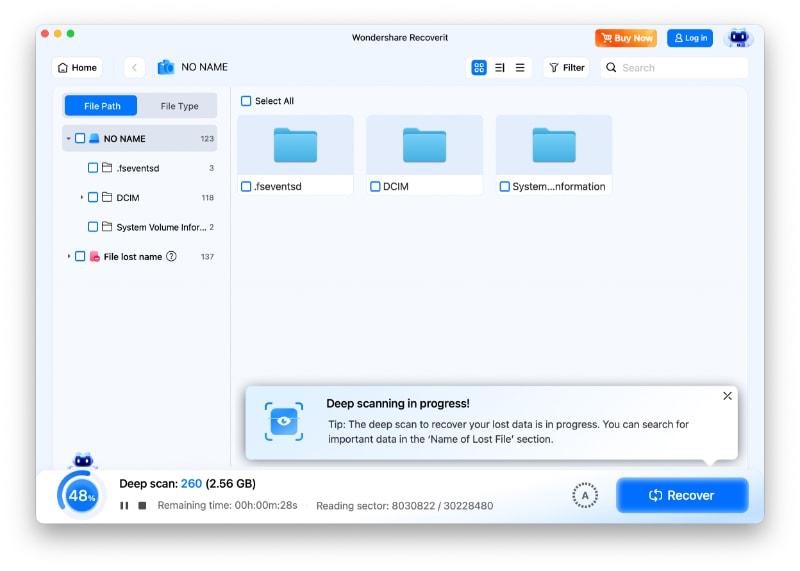
After scanning starts, review folders, photos, and file types in the results. Next, use filters or search to find important items faster during scanning. Afterwards, preview files, select required items, then press “Recover” to continue.
Step 3. Save Recovered Files to Another Drive
Lastly, choose a save path on your Mac drive or another storage device. Plus, do not save files back to the same memory card during recovery. Select another file path for your recovered files and click “Save” to successfully execute the entire process.

Why Choose Recoverit
Below are the reasons one should consider Recoverit V14 for memory card recovery on Mac:
- Deep Scan Support: Recoverit performs deep scans to locate deleted, hidden, and fragmented memory card files.
- Formatted Card Recovery: It restores data from formatted memory cards on Mac without risky overwrite actions.
- File Preview Option: Preview files before recovery, helping you verify results and avoid unnecessary exports later.
- Wide File Compatibility: Recoverit supports many file types, improving recovery chances across mixed card contents easily.
- Easy Mac Workflow: Its simple Mac workflow that reduces mistakes and helps protect recoverable files during restoration.
Fix 3: Seek Professional Help For Physically Damaged Cards
Physical damage needs professional recovery when cards crack, bend, overheat, or stop mounting completely. Therefore, specialists use hardware tools, donor parts, and controlled environments that home users cannot replicate safely. If the card shows severe damage, repeated attempts may reduce the chances of restore data from the memory card later and increase the failure risk during lab evaluation.
Conclusion
To conclude, successful memory card recovery Mac depends on acting early, avoiding overwrites, and choosing the right fix for each failure type. Start with safe checks, then use trusted recovery software for deleted or formatted files and seek professionals for physical damage. For a guided Mac workflow, try Recoverit Data Recovery for safer previews and selective restoration on damaged cards.