After resetting an OPPO device, many users get stuck at verification during setup. You face the Google Factory Reset Protection feature designed for device security. It protects stolen phones but traps genuine owners after resets or forgotten accounts. Searching online reveals countless risky APKs and outdated tricks that rarely work.
Instead of guessing methods, a guided solution ensures both security and reliability. Also, tools like Dr.Fone Screen Unlock provide a structured workflow to unlock FRP. This guide explores the safe and effortless way to regain access to your locked OPPO phone.

Post Contents
Part 1. Understanding OPPO FRP: What Is Google Verification After a Reset?
OPPO FRP, or Factory Reset Protection, is a native security feature from Google. It activates when you reset your phone without removing Google accounts. During setup, the system prompts you to enter the original synced email. This feature prevents unknown users from accessing your data after a theft. However, legitimate owners also face this hurdle after forgetting their own credentials.

You must understand this mechanism if you hope to unlock Android phone models. Google designed this verification to ensure that only the primary user enters. When the system detects a reset, it locks the interface until verification. So, recognizing this specific state is the first step toward recovering your device.
Part 2. How You Can Identify an OPPO FRP Lock During Setup (Not a Screen Lock Issue)
Many users confuse FRP lock with the normal screen password or pattern security feature. A screen lock prevents entry to your home screen using PINs or patterns. In contrast, the FRP lock appears specifically during the initial device setup screen. You will see a request for the original Google account email and password.
In such situations, using a random FRP bypass tool found online often leads to security risks. You must differentiate these two locks before choosing your recovery method. The following table highlights the core differences between these two locks:
| Criteria | FRP Lock (Google Verification) | Screen Lock (PIN/Pattern/Password) |
| Activation | After a forceful factory reset | Before or during regular use |
| Trigger | Missing Google credentials | Forgotten passcode or pattern |
| Purpose | Prevents unknown access post-reset | Protects local device access |
| Location | Appears during the setup process | Appears before the phone boots fully |
| Removal Method | Requires account verification or FRP removal tool | Can be reset via recovery or tools |
Part 3. Why You Should Avoid Risky OPPO FRP Bypass APKs and Outdated Tricks
Risky FRP bypass APKs often promise instant access but create serious problems. Many scripts are outdated or designed for older Android versions. They may also brick your system, leaving you unable to unlock your OPPO phone again. Below, you will explore why these shortcuts are dangerous and not worth using:

- Malware risk: Untrusted FRP APKs bundle spyware, adware, or remote‑control components. Once installed, these files can steal login and sensitive stored information.
- Data exposure: Many tutorials ask you to enter Google credentials on unknown screens. Doing this allows attackers to capture your account details and compromise linked services.
- Device bricking: Improper scripts may change system partitions or boot settings. This can soft‑brick or hard‑brick the phone, requiring professional repair or board work.
- No updates: Old tricks target specific patches on earlier Android or ColorOS versions. After updates, these loopholes close, leaving the same risky method ineffective.
- Warranty issues: Unauthorized modifications can violate terms from OPPO or service providers. If something breaks, official centers may refuse any device support.
Part 4. A Safe and Practical OPPO FRP Unlock Roadmap for Legitimate Owners
Accessing your locked device requires a clear and professional recovery plan. You should avoid random tricks and choose a tool like Dr.Fone Screen Unlock. This structured approach protects personal data while bypassing the stubborn security lock. Review the following roadmap table to see the core steps for recovery success:
| Phase | Action Details |
| Preparation | Charge the phone, use reliable Wi‑Fi, and avoid interrupting any ongoing operations. |
| Verification | Confirm your exact OPPO device model and Android version for tool compatibility. |
| Choose Trusted Tool | Select reputable and updated FRP removal software like Dr.Fone |
| Follow Guided Steps | Use structured instructions provided by the tool to initiate the bypass. |
| Finalization Setup | Reconfigure the device after successful verification removal and add the updated Google account. |
Part 5. Using Dr.Fone for Safe and Guided OPPO FRP Unlock After Reset
When you are locked out of your OPPO device, you need reliable help. In such cases, Dr.Fone – Screen Unlock (Android) is the leading FRP bypass tool for reliable results. This tool supports OPPO alongside 15+ other brands like Samsung and Vivo. Moreover, it covers Android 16 and earlier versions for maximum compatibility. Users bypass FRP effortlessly without advanced technical skills.

During the process, the software removes Google verification in minutes using guided steps. In addition, AI-powered features ensure high 100% success rates on modern OPPO models. Dr.Fone even maintains regular updates matching the latest ColorOS security patches. Apart from that, it even removes various screen locks like PIN codes and face recognition.
Key Features
- Snapdragon Compatibility: Delivers reliable FRP removal on Samsung Snapdragon models.
- MTK Support: Dr.Fone also provides bypass solutions for MediaTek-powered Android devices.
- Model Selection: While removing, it allows accurate device model selection for accurate bypass.
Detailed Guide to Using Dr.Fone for Safe and Guided OPPO FRP Unlock
Dr.Fone simplifies the complex process to help you unlock your OPPO phone. This professional software guides users through every stage of the entire recovery. You can go through the steps below to restore access to your locked device:
Step 1. Open Dr.Fone’s Remove FRP Lock
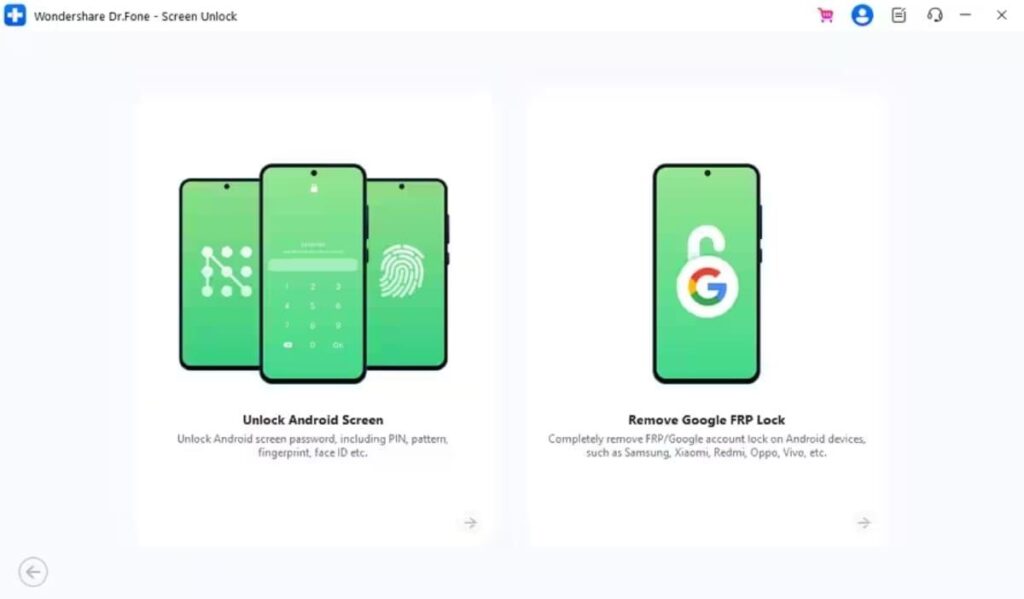
To initiate, navigate to the “Screen Unlock” feature and select “Android” as your device. Here, you need to choose the “Remove Google FRP Lock” option from the available options.
Step 2. Choose Your Phone and Unlocking Method
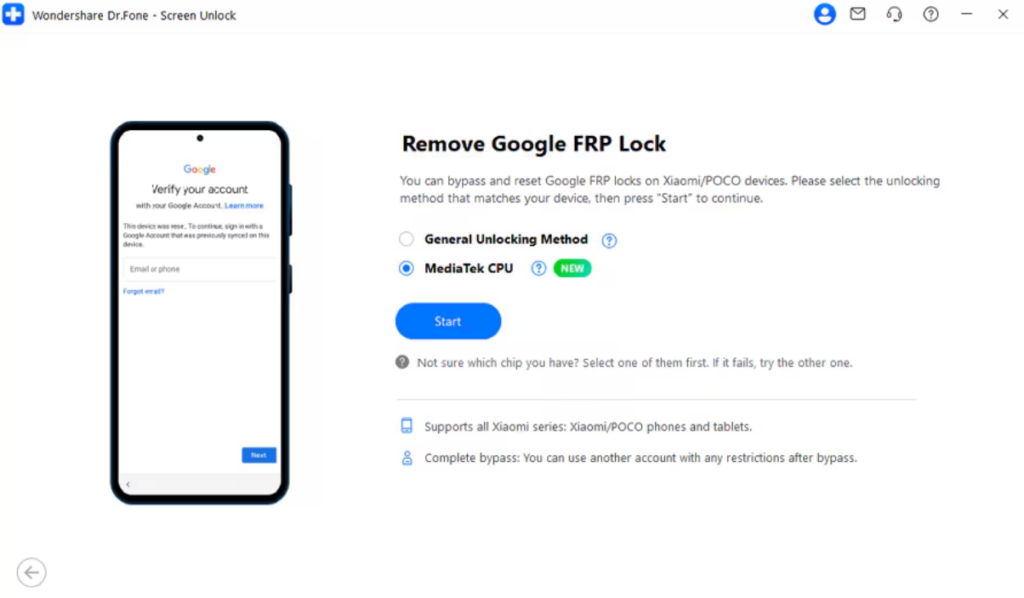
Moving forward, select “OPPO” as your phone’s brand and click the “Start” button. On the upcoming screen, opt for “MediaTek CPU” as the unlocking method and press “Start.”
Step 3. Remove the Google FRP from OPPO
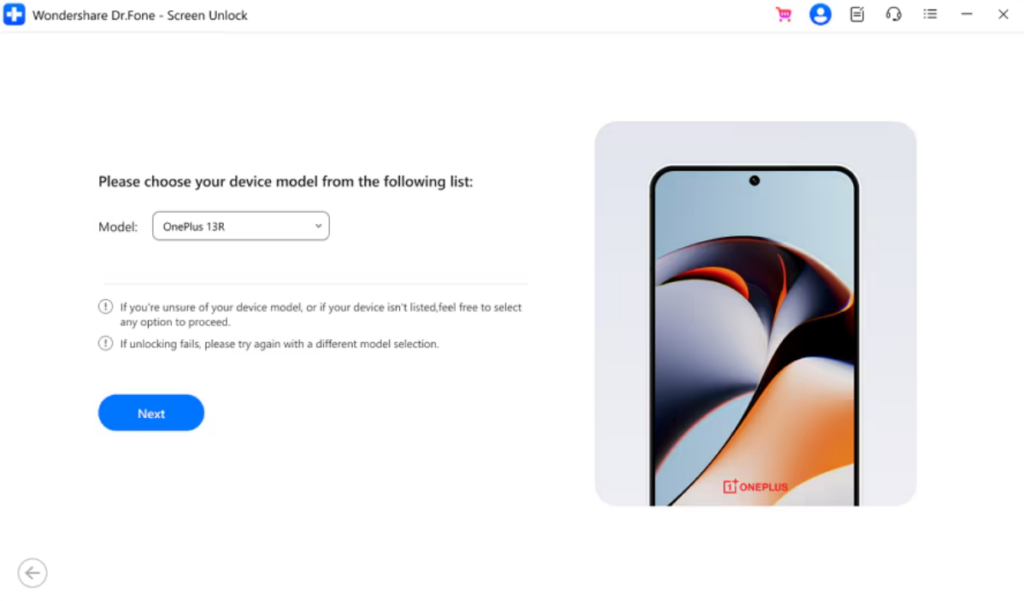
As the tool downloads the required drivers, connect your OPPO to the PC. Then, press the “Volume Up” and “Volume Down” keys together for around 3 seconds. When done, choose your specific “OPPO” model and hit “Next.” Dr.Fone will then initiate unlocking the FRP lock on your device.
Conclusion
In summary, OPPO FRP protects devices but locks out legitimate owners after resets. This guide covered identification, along with the risks of APKs. Also, you should focus on verified tools over random online tricks for security. Responsible recovery ensures access without compromising device integrity or data. You should use Dr.Fone Screen Unlock for reliable FRP bypass on OPPO models.