A broken Android screen can be very stressful, especially when the touch stops working. The damaged screen prevents access to data, apps, and contacts. Fortunately, there are various ways to access your phone. You can use Google’s built-in tools, external devices, and professional applications, such as Dr.Fone – Screen Unlock (Android). These methods unlock Android phones with a pattern, PIN, or password, even with shattered or dark screens. This article will discuss realistic ways to recover device control.
Post Contents
Common scenarios: broken screen on an Android phone
Android users with faulty screens face various issues. Most touch screens stop responding due to significant cracks or internal damage. No matter how you tap or swipe, nothing works. Sometimes the phone turns on but displays a black screen. No display, yet the device works in the background. Sometimes the screen is partially viewable, but cracks prevent drawing the correct pattern or entering a pin. These vulnerabilities can control data access.
Use Google’s built-in tools.
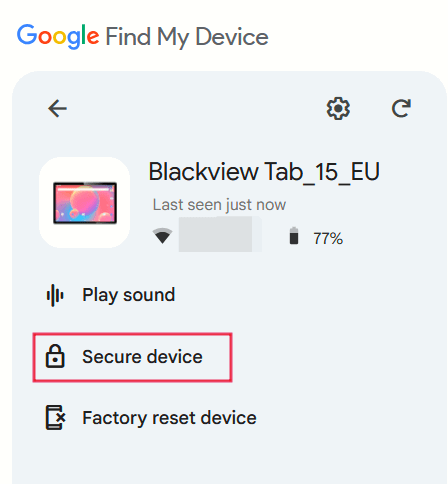
- Google Find my device
Remotely locate, lock, and unlock your Android phone with this tool. It requires a Google account and an internet connection on the phone. Location services should be active.
Follow the steps below to unlock:
Step 1. Use your phone’s Google account to sign in and find My Device.
Step 2. Choose your device from the list.
Step 3. Select “Secure device” and change the password.
Step 4. Wait a few minutes, then unlock your phone with this password.
- Samsung Find My Mobile
Find My Mobile lets you unlock a Samsung phone without losing data. Your Samsung account must be activated on the locked device for this tool to work. Connect your phone to the internet before starting. Steps to unlock:
Step 1. Sign in to find my mobile on any browser with your Samsung account.
Step 2. Choose your locked device.
Step 3. Click “Unlock,” then confirm with your Samsung account password.
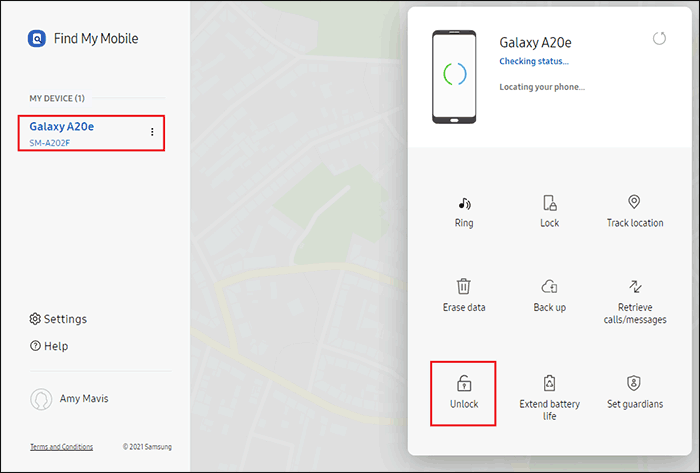
Step 4. Wait till the process finishes to unlock your phone safely.
Unlock with external hardware options
You can still use external hardware tools to unlock your Android phone even if the screen is broken and your touch is not functioning. By using these techniques, you can operate your device without depending on the broken screen. They are easy to do and don’t call for sophisticated abilities.
- Use the OTG cable and the USB mouse
You can attach a USB mouse straight to your phone using an OTG (on-the-go) cable.
Step 1. Connect OTG cable with the phone.
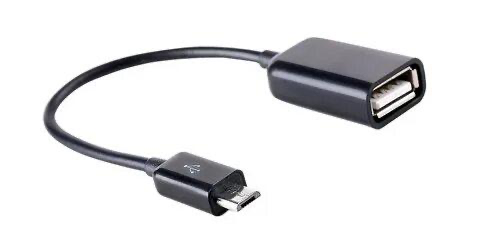
Step 2. A USB mouse should be connected to the adaptor.
Step 3. The screen will display a little pointer.
Step 4. Enter your pattern or pin by swiping and tapping with the mouse.
This technique is most effective when the display is still viewable, but only the touchscreen is broken. You have complete control over data transfers, file backups, and phone unlocking.
- Use a secondary display for black screens
You can mirror the screen to another device if the phone is still on, but the screen is entirely black.
Step 1. To connect your phone to a TV or monitor, use an HDMI or MHL adaptor.
Step 2. The phone screen will show up on the larger screen after it has been connected.
Step 3. To explore and enter the pattern or password, pair a USB keyboard or mouse.
When the phone is working but the display is dead, this configuration is quite useful. You can unlock Android phones and save valuable data using both secure techniques without first requiring a repair.
Unlock a broken screen Android phone with a professional tool: Dr.Fone – screen unlock (Android)
Professional tools like Dr.Fone – Screen Unlock (Android) can fix a broken or unresponsive Android screen. Even without the touchscreen, our software unlocks Android phones safely and swiftly. It supports pattern, PIN, password, fingerprint, and face lock for 27 brands and over 2,000 Android smartphones, including Samsung, Huawei, Xiaomi, and others.
Key features
- Remove Android lock screens (pattern, PIN, password, fingerprint, Face ID) instantly.
- Samsung FRP lock bypass without pc.
- Compatible with Android 16, including newer versions.
- No it skills needed—just click-through steps.
- Unlock Samsung/LG without data loss (supported models).
Step-by-step guide
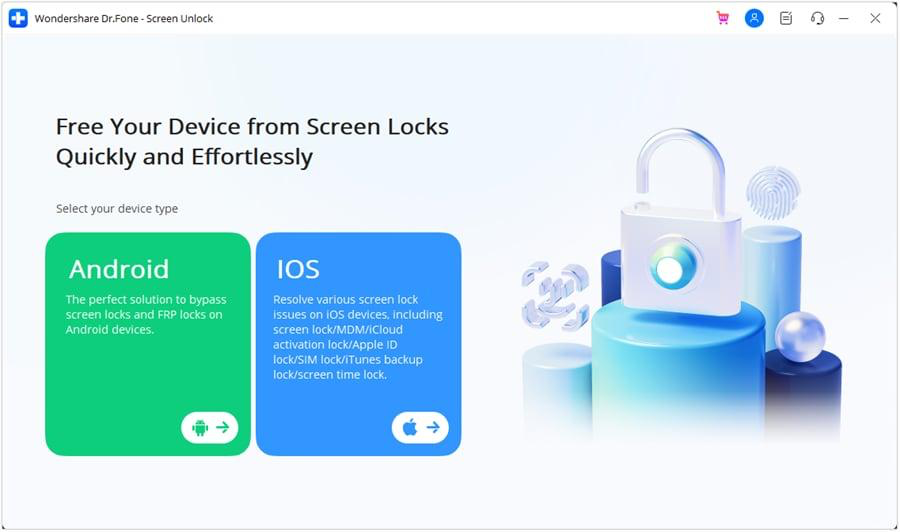
Step 1. Download and install Dr.Fone on your Windows device. Open the app and click “Screen Unlock,” then select “Android.” Connect your broken-screen android phone via USB.
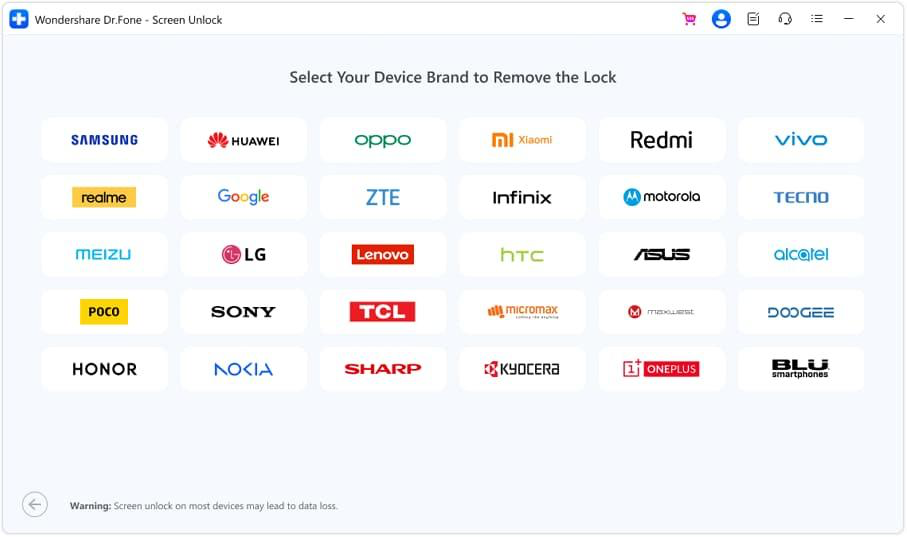
Step 2. Click “Unlock Android Screen,” select your device brand and model, tick “I agree” to the warning, then click “Next.”
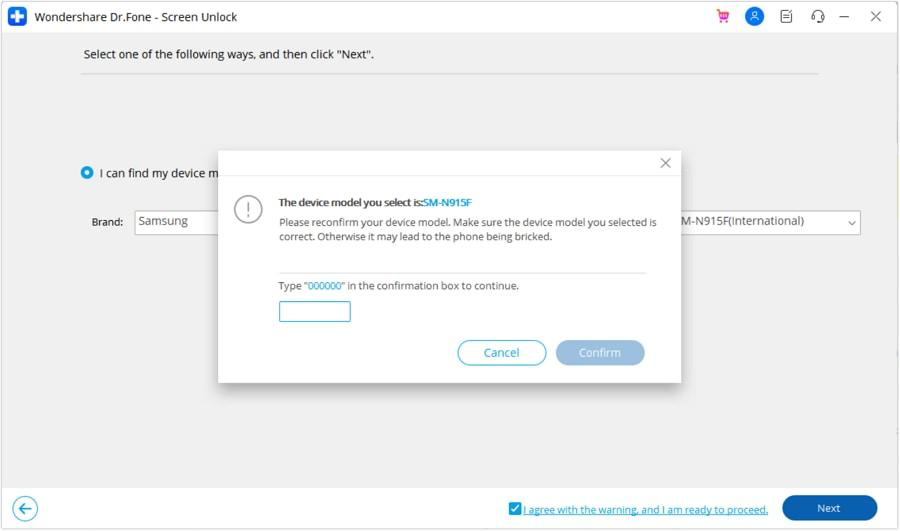
Step 3. Type “000000,” click “confirm,” then follow on-screen instructions to enter “download mode.”
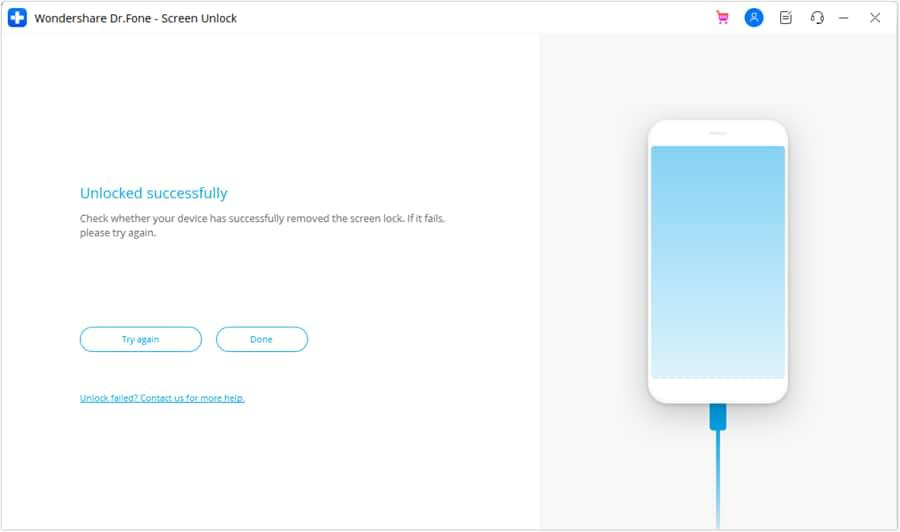
Step 4. To remove the lock screen, Dr.Fone will download the necessary files, automatically delete it, and display ‘Unlock Completed’.
Pros: It is quick, it supports most Android manufacturers and unlock all Samsung devices without data loss.
Cons: Some models require factory resets. The Mac version is coming shortly.
Dr.Fone – Screen Unlock (Android) lets you easily unlock your phone, retrieve files, and use it with a broken screen.
Last resort: factory reset (when other methods fail)
A factory reset can unlock a broken Android phone if everything else fails. Your contacts, photographs, apps, and videos are erased along with the lock settings. This is only useful if you have backed up your files, and if the device has nothing important. Factory reset steps:
Step 1. Turn off Android.
Step 2. Press and hold the volume up/down button and the power button to activate “recovery mode.”
Step 3. Press the power button after selecting “wipe data/factory reset” using the volume keys.
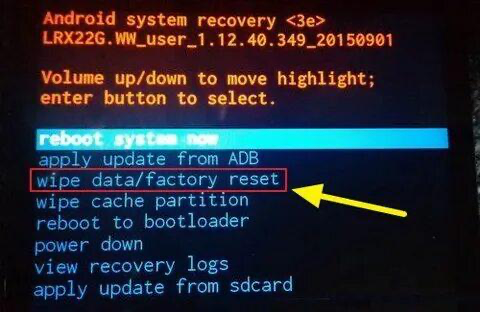
Step 4. Factory data reset, then “reboot system” now.
Professional repair or service centre
A professional repair centre is best for severely damaged screens or phones that do not respond. Official repair providers can safely fix the screen, restore data, and unlock the phone. Use this option if the gadget is under warranty or contains critical files that need to be backed up. Repair centres protect your phone’s hardware and handle it properly, but they come at an extra cost.
Preventive tips for the future
Protect your Android from lockouts with these tips:
- Google Backup & Sync protects contacts, photographs, and files.
- To limit screen use, enable fingerprint or face unlock.
- Prevent cracks and damage with a sturdy screen protector or case.
- Backup data routinely to a pc or cloud for simple recovery after an accident.
Conclusion
With a broken screen, there are various ways to unlock an Android phone. Try built-in tools, hardware, or Dr.Fone – Screen Unlock (Android) for fast results. If all else fails, a factory reset or visit to a repair centre may be necessary. To secure your phone and make it easier to unlock, back up your data, and utilize reliable tools.