Picture a windswept coastal cliff at golden hour, mist curling off jagged rocks while distant lighthouses beam through the haze. Now imagine producing that exact scene from a single reference photo in under a minute, no drawing tablet required. That is the promise of an AI art landscape generator from photo in 2026, and the tool we keep returning to is Spellai.
Unlike garden and yard design apps that re-imagine your actual backyard with new flower beds, Spellai exists for a different crowd entirely: concept artists, hobbyists, game developers, and digital painters who want to generate landscape art from photo AI instead of sketching every ridge by hand. If you have ever searched for an AI landscape image generator from photo and landed on a garden planner, this guide will reset your bearings.
In this 2026 walkthrough, we will define how a true AI art generator differs from landscaping software, cover the gear and mindset you need before you start, break down a four-step Spellai workflow, share a prompt engineering guide for sharper scenic backdrops, and answer the questions creators ask most. By the end, you will know exactly how to turn a flat photo into landscape art that looks gallery-ready.
Post Contents
Understanding AI Landscape Generators: Definition & Functionality
An AI art landscape generator is a text-to-image and image-to-image tool that interprets a written prompt, a reference photo, or both, then synthesizes an original piece of landscape art. The keyword here is art. Spellai and similar platforms such as Recraft AI run on diffusion models that learn the visual language of mountains, forests, rivers, and skies, then repaint those elements in styles ranging from cinematic realism to dark fantasy.
This is fundamentally different from the AI landscape design tools dominating the top of Google search results. Apps like Neighborbrite, Ideal House, and mnml.ai ingest a photograph of your actual yard and propose new hardscaping, plant arrangements, and patio layouts for that physical space. They are practical planners built for homeowners, contractors, and landscape architects.
Spellai sits in a different category altogether. It does not know or care whether a hillside is on your property. It treats your reference image as an artistic seed and remixes it into concept art, wallpaper, illustration, or scenic backdrop. Think of garden tools as architectural visualization software and Spellai as a digital atelier for landscape illustration. Both are valid uses of AI rendering, but only one produces the painterly landscapes most creators are chasing.
The generative AI category has only accelerated since early diffusion model releases. Market trackers now place the broader AI image generation space well past earlier projections, with creative professionals adopting text-to-image workflows for game assets, book covers, marketing visuals, and concept art pipelines. What used to require a freelance illustrator and a week of turnaround can now be iterated in an afternoon.
Why Spellai Stands Out for Landscape Art Generation
Plenty of AI art generators can render a mountain range, but very few are built around the kind of granular control that landscape art demands. Spellai distinguishes itself with three generation modes, a built-in negative prompt field, and an Easy Models library that bundles preset themes for users who do not want to engineer every prompt from scratch.
The Genius mode is where the tool pulls ahead of casual alternatives. You can dial in a specific style such as Cinematic, attach a Theme preset like Dark Fantasy, then write a custom prompt describing the exact vista in your head. The negative prompt slot lets you exclude the artifacts that ruin scenic backdrops, things like extra people, distorted horizons, or oversaturated skies. For anyone who has fought with a generic AI art generator that kept inserting unwanted elements, that single field is a quiet relief.
Spellai also supports reference image uploads, so you can feed it a vacation photo, a mood board snippet, or even a Face ID image to steer the composition. Combined with adjustable output count and aspect ratio controls, the platform behaves less like a slot machine and more like a collaborative digital art assistant. That is a meaningful shift for creators who need consistent, high resolution output across a series.
Before You Begin: Key Requirements for Generating Landscape AI Images
Great landscape art rarely happens on the first click. Set yourself up for cleaner results from an AI landscape generator based on photo by sorting out these five essentials before you open the tool.
- A clear creative direction. Vague prompts produce vague scenery. Decide on a mood, time of day, and focal point in advance so the model has something concrete to anchor to, something like “foggy mountain ridge at sunset, low clouds, warm orange light.”
- A capable AI art generator. Pick a tool that exposes customization options such as style selection, negative prompts, and aspect ratio controls. Spellai checks these boxes across its Genius and Easy Models modes, which is why it remains our default recommendation.
- A device with a stable internet connection. Spellai runs in the browser, so a modern laptop, tablet, or phone with reliable bandwidth is enough. Slow connections tend to time out mid-render on higher output counts.
- A reference image that matches your intended mood. If you plan to use image-to-image generation, choose a source photo that already has the lighting, palette, or composition you want. The model uses that image as a creative seed, so a mismatched reference leads the output astray.
- Patience for iteration. AI art is a conversation, not a vending machine. Plan to regenerate three or four times, tweak the prompt between runs, and refine the negative prompt until the scene lands where you want it.
How to Create an AI Landscape Photo Using Spellai?
With the prerequisites sorted, here is the four-step workflow we use inside Spellai to turn a prompt or reference photo into finished landscape art.
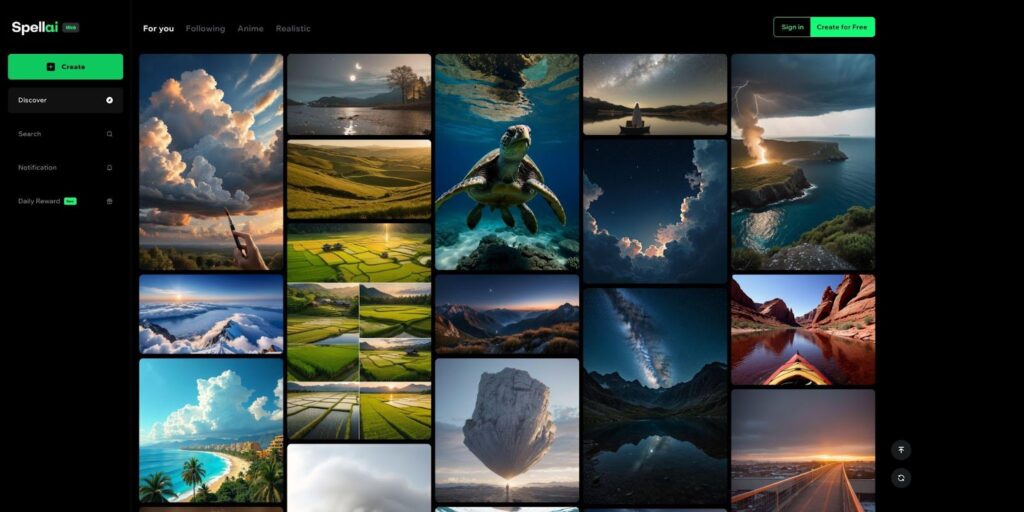
Step 1. Choose Spellai as a Reliable AI Landscape Generator
Head to Spellai and sign in or start a free session. The platform offers three generation modes tailored to different skill levels, which means beginners can lean on Easy Models while experienced prompt engineers can dig into Genius mode. Inside Genius, you can add a negative prompt to exclude unwanted elements, set how many outputs you want per run, and upload a reference image when you want photo to art results rather than purely text-to-image generation. Launch the tool and you are ready for the next step.
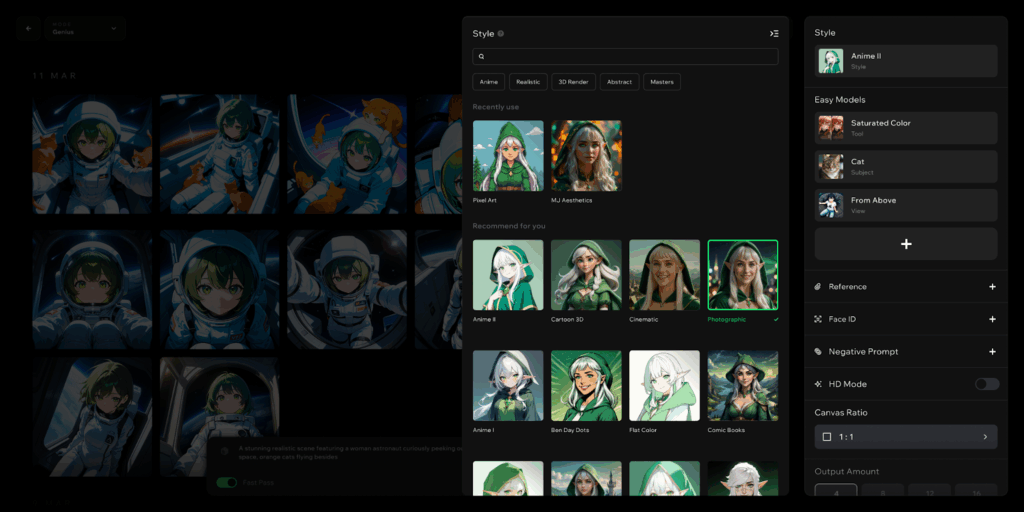
Step 2. Select a Style, such as “Cinematic,” in Genius Mode
Open Genius mode and click into the Style menu. For scenic backdrops with rich lighting and depth, the Cinematic style is hard to beat, though Realistic, Anime, and Digital Art are worth experimenting with depending on the project. The style you pick here dictates the overall rendering language, so if your first results look flat, switching styles often solves it faster than rewriting the prompt.
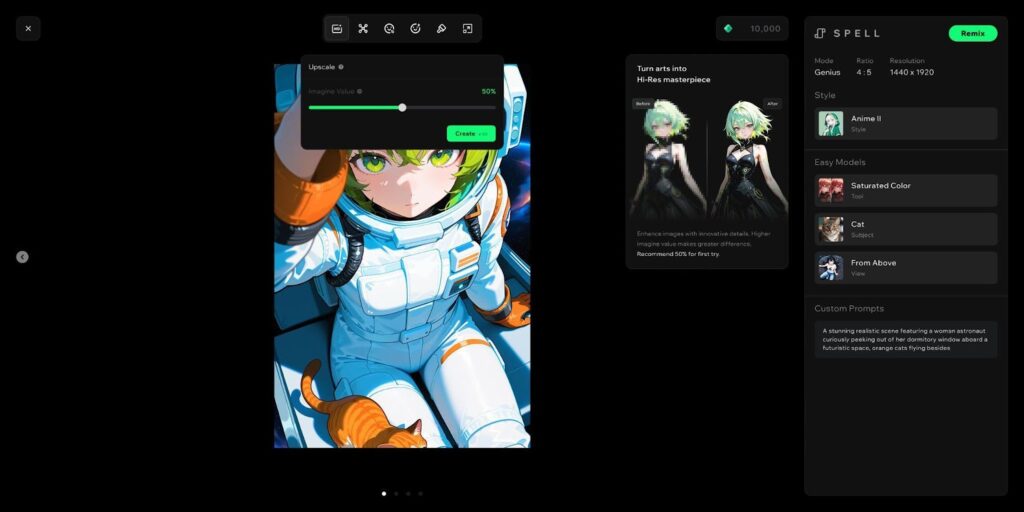
Step 3. Use the “Theme” Option from the “Tool” in Easy Models
For an extra layer of direction, expand the Easy Models menu and pick a Theme preset. Dark Fantasy is a strong choice for moody, atmospheric landscapes, while themes tuned for natural scenery help when you want photorealistic results. Combining a Cinematic style with a complementary Theme preset produces results that feel intentionally art-directed rather than randomly generated.

Step 4. Export Generated Landscape Art and Share it With the Spellai Community
Once the render finishes, preview the variations and pick the strongest composition. Spellai lets you export the final image for use in your own projects, or publish it to the in-app community feed where other creators can react and remix. If the first batch is close but not perfect, refine the prompt, adjust the negative prompt, and regenerate before exporting the final high resolution output.
Recommended Prompts to Generate Landscape Art with Spellai
Prompts are the single biggest lever for quality when you generate landscape art from photo AI. Below are three field-tested examples that demonstrate different style, preset, and prompt combinations inside Spellai’s Genius mode.
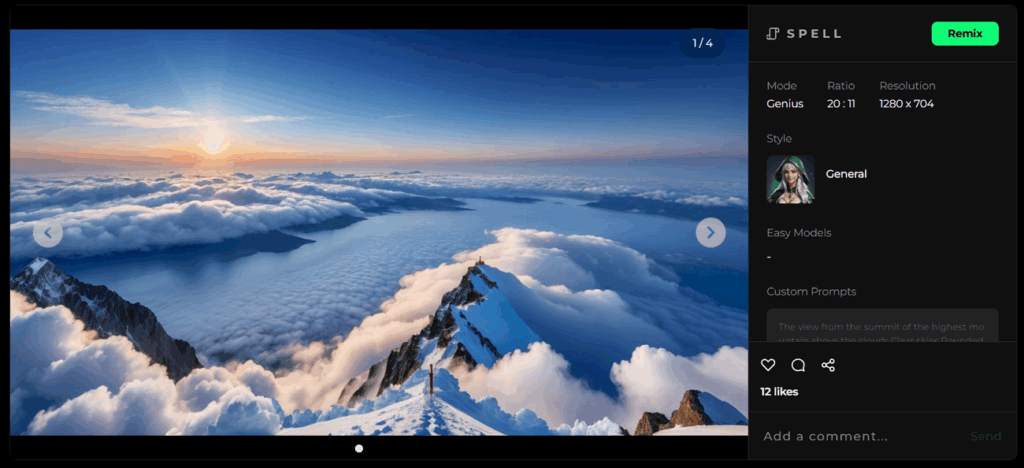
- A mountain with a very high altitude view of clouds. Use the General style with this custom prompt: “The view from the summit of the highest mountain, above the clouds, clear skies, rounded horizon, vast scenery, mysterious, beautiful world, beautiful sky gradation, blue sky.” The result reads like a sweeping concept art plate suitable for game backdrops.
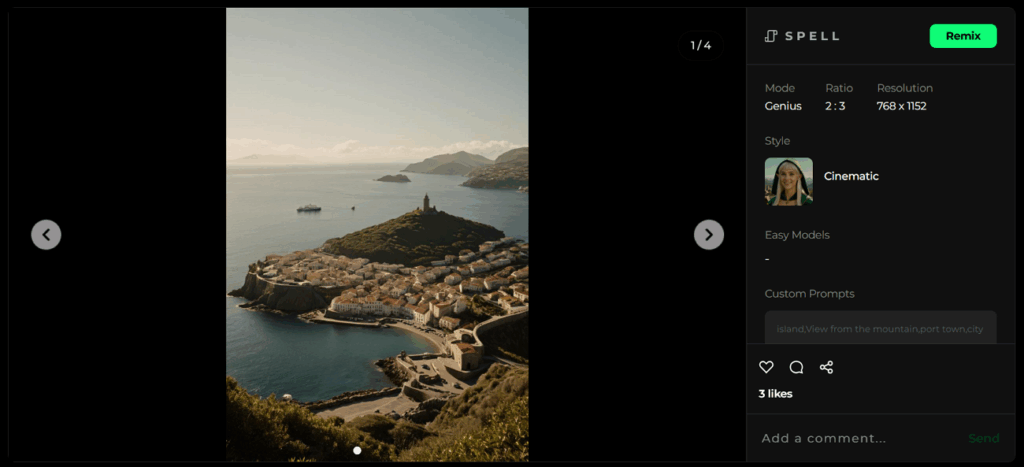
- A small village on an island in the middle of the ocean. Set the Cinematic style and use this custom prompt: “Island, view from the mountain, port town, city.” Even with a short prompt, the style preset carries most of the visual weight and produces a cohesive coastal scene.
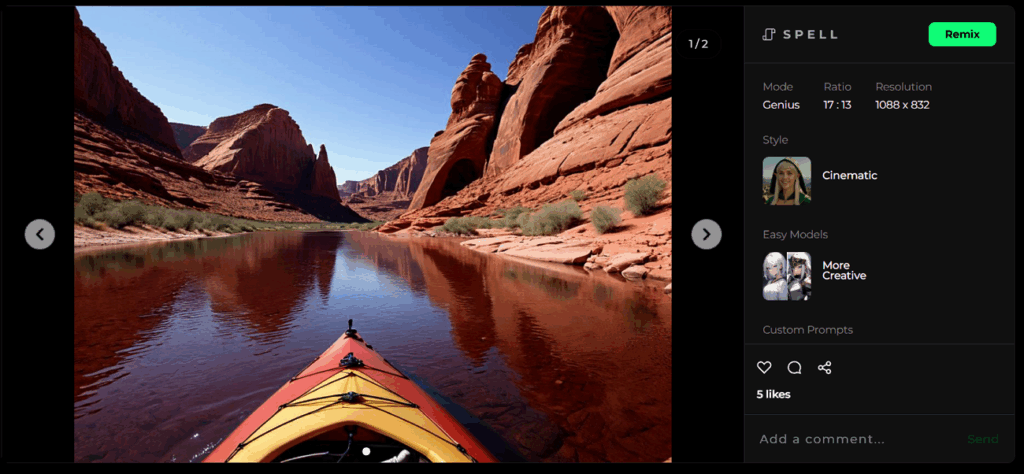
- A kayak near a rocky shoreline. Choose the More Creative Easy Model, Cinematic style, and this custom prompt: “(photo realistic) (high resolution image) (vanishing point) (depth of field) (accurate prompt) looking over the bow of a kayak to a river beyond and a red rock wilderness. Natural arches stretch up into the blue sky. In the distance, the river wanders through more arches (rock layers), red rock (sandstone).” Notice how weighting phrases in parentheses guides the model toward realism.
Prompt Engineering Guide: Getting the Best Landscape Art from Spellai
Prompt engineering is where casual users and serious creators diverge. A few small habits will push your landscape art from generic to gallery-grade without buying a more expensive plan.
Lead with Subject, Light, and Mood
Structure every prompt the same way: name the subject first, then describe the lighting, then state the mood. A prompt like “snowy alpine valley, soft overcast light, quiet and lonely” gives the model a clear hierarchy to follow. Front-loading the subject prevents the AI from fixating on secondary details.
Use Weighting Phrases for Realism
Wrapping key instructions in parentheses acts as a soft weighting system, as shown in the kayak example above. Tokens like (high resolution image), (depth of field), and (photo realistic) bias the model toward detailed, photographic output. Stack two or three of these rather than cramming in a dozen, which tends to confuse the rendering.
Lean on the Negative Prompt
The negative prompt is your single best defense against the artifacts that ruin scenic backdrops. Common exclusions worth keeping in your default negative list include “people, faces, text, watermark, signature, blurry, distorted horizon, oversaturated, extra limbs, low quality.” A clean negative prompt often improves output more than rewriting the positive prompt.
Iterate in Pairs, Not Singles
When a render almost works, change only one variable at a time, either the style, the theme preset, or a single clause in the prompt. Changing everything at once makes it impossible to know which edit moved the result forward. Set Spellai’s output count to four so you always have a small grid to compare.
Common Use Cases for AI Landscape Art
Knowing where landscape art actually gets used helps you brief the model with the right end goal in mind. Concept art for games and film is the most obvious fit, since concept artists need dozens of environment variations fast and Spellai’s style presets map cleanly to fantasy, sci-fi, and historical settings.
Wallpaper and digital background creation is another popular path. Designers pull cinematic renders into desktop wallpapers, presentation backdrops, and social media headers. Book cover illustrators, indie game studios, and tabletop RPG publishers also lean on AI landscape art for mockups and pitch decks before committing to a paid illustrator.
For marketers and content creators, generated scenery works well as B-roll for video thumbnails, blog headers, and mood boards. Just keep commercial use rights in mind: confirm Spellai’s current licensing terms before reselling generated images or using them in paid client work.
Frequently Asked Questions
Is there an AI that turns images into landscapes?
Can AI generate landscape images?
What is the difference between AI landscape art generators and AI garden design tools?
Is Spellai free to use for landscape art generation?
How do I write a good prompt for AI landscape art?
Can I use a photo as a reference in Spellai?
Can ChatGPT create landscape design?
Conclusion
Turning a flat reference photo or a few lines of text into atmospheric landscape art is no longer a fringe experiment, it is a daily creative workflow in 2026. Spellai’s Genius mode, Easy Models themes, negative prompt field, and reference image upload give you the kind of art-directed control that most generic AI art generators still lack, which is why it remains our default recommendation for anyone who wants to generate landscape art from photo AI rather than redesign a backyard.
If you are working on concept art for a game, building a wallpaper set, drafting a book cover mockup, or just want cinematic scenic backdrops for your next project, the four-step Spellai workflow above will get you there. Start with a clear creative direction, lean on the prompt engineering patterns we covered, iterate patiently, and let the negative prompt carry the cleanup work.
Ready to put it into practice? Open Spellai, pick the Cinematic style, paste one of the recommended prompts from this guide, and see where your first landscape takes you. The tools are here, the prompts are tested, and the only thing left is your imagination.