For the longest time, I treated my MacBook like a glorified Windows machine. I’d click the Launchpad icon, scroll through three pages of apps, squint at icons, and finally double-click whatever I needed. Opening a single PDF buried in my Downloads folder used to take me a full minute of clicking around.
Then one random afternoon, I hit Cmd + Space by accident while trying to take a screenshot, and a little search bar popped up in the middle of my screen. That tiny moment is the reason I’m writing this post — because Spotlight Search on Mac quietly became the single feature that saves me the most time every single day.
This is exactly how I use it, what I got wrong at first, and the small tricks I genuinely wish someone had shown me on day one.
Post Contents
The Day I Stopped Clicking Around Like a Tourist
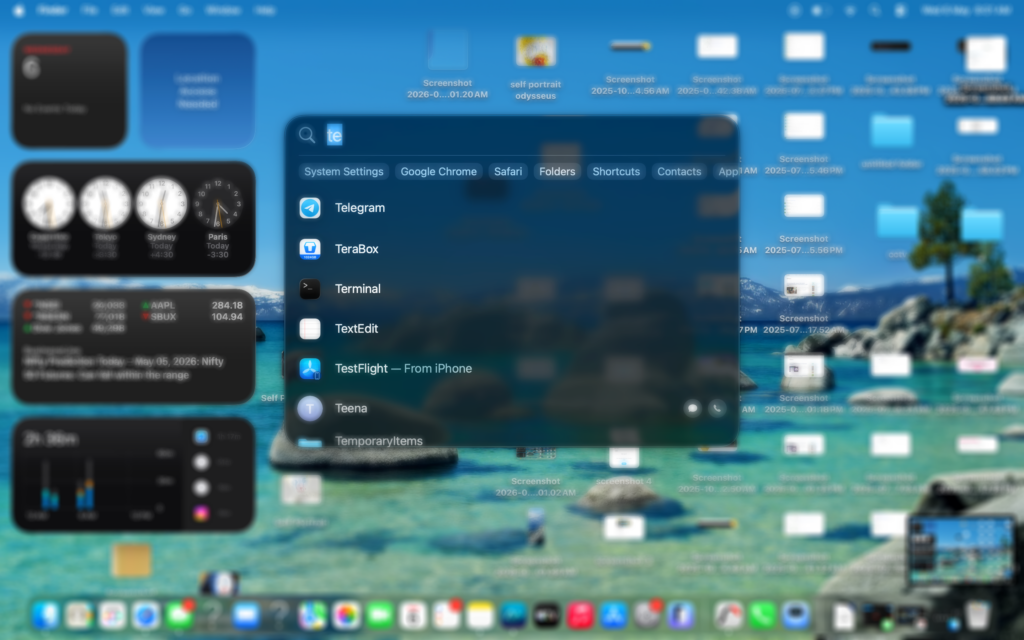
The first week I started using Spotlight, I only used it to open apps. That’s it. I’d hit Cmd + Space, type “chr” for Chrome or “spo” for Spotify, hit Enter, and feel pretty smug about it.
Honestly, even just that change was huge. I stopped using the Dock for anything except a few pinned apps. My Launchpad basically became decorative.
But I was barely scratching the surface, and I didn’t know it yet.
What Tripped Me Up Early On
Here’s the embarrassing part. For probably the first month, I kept typing the full app name. Like the entire thing. “Calendar”. “Calculator”. “System Settings”.
Then I noticed Spotlight was already showing me the right result after just two letters. I was wasting keystrokes for no reason.
A few small habits that completely changed things for me:
- Two or three letters is almost always enough
- Hit Enter the moment the right result appears at the top
- If the wrong app shows up, type one more letter — Spotlight learns over time
- Don’t use the mouse. Ever. The whole point is keyboard speed
The “learning over time” part is real. The first few times I typed “ph”, Spotlight kept opening Photos. After I picked Photo Booth twice in a row, it started ranking Photo Booth higher. Now my muscle memory and Spotlight’s memory are basically synced.
Finding Files Without Opening a Single Folder
This is where Spotlight stopped being a nice-to-have and became something I genuinely depend on.
I’m the kind of person who saves everything to Desktop and Downloads with names like “final_v3_actually_final.pdf”. My folder structure is a war crime. So when I need to find an old invoice or a screenshot from three months ago, I don’t browse — I just type.
What I do now:
- Hit
Cmd + Space - Start typing the file name, even just a fragment
- If I remember the file type, I add it:
invoice pdf,client docx,screenshot png - Use the arrow keys to preview without opening
The preview part is something I almost missed. When you arrow down to a file in Spotlight results, a preview panel slides out on the right showing you the contents. For PDFs, images, even text files, I can read the whole thing without opening the actual app. Massive time-saver when I’m just verifying something.
The Calculator I Never Have to Open
This one genuinely changed how I work. I do a fair bit of math during the day — quick calculations, percentages, splitting bills, working out conversions. I used to open Calculator.app or even reach for my iPhone. Pointless.
Spotlight does math right inside the search bar. No Enter, no extra app.
A few things I type into Spotlight constantly:
2495 * 0.18— quick GST calculation(8500 + 1200) / 2— splitting a dinner bill15% of 4500— yes, this workssqrt(144)— when I’m being a nerd
The answer just appears below the search bar instantly. I copy it with Cmd + C and paste it wherever I need. There’s no context switch, no app to close. It’s the closest thing to a real-time mental calculator I’ve found on any device.
![How I Use Spotlight Search to Save Time on Mac (My Honest Setup in [cy]) 1](https://technoxyz.com/wp-content/uploads/2026/05/Screenshot-2026-05-06-at-8.02.28-AM-1024x640.png "How I Use Spotlight Search to Save Time on Mac (My Honest Setup in [cy]) 2")
Currency and Unit Conversions in Two Seconds Flat
I order stuff from international sites a lot. I read tech specs in inches when I think in centimeters. Spotlight handles all of this without me leaving whatever I was doing.
Things I genuinely type during a normal week:
49 usd to inr15 inches in cm200 grams to oz60 mph in kmh
The conversion shows up live, with what feels like a reasonably current exchange rate (Apple pulls this from somewhere — don’t quote me on day-trading accuracy, but it’s been close enough every time I’ve cross-checked).
The first time this clicked for me, I was on an Amazon US listing checking a product size, and I realized I’d been opening a browser tab to Google “X inches to cm” maybe twenty times a day. That’s gone now.
![How I Use Spotlight Search to Save Time on Mac (My Honest Setup in [cy]) 2](https://technoxyz.com/wp-content/uploads/2026/05/Screenshot-2026-05-06-at-8.02.54-AM-1024x640.png "How I Use Spotlight Search to Save Time on Mac (My Honest Setup in [cy]) 3")
The System Settings Shortcut That Saved My Sanity
macOS keeps moving things around in System Settings. The new layout, the renaming from “System Preferences”, the buried submenus — I genuinely can’t find anything in there by browsing anymore.
So I stopped browsing. I just type what I need into Spotlight directly.
Stuff I type all the time:
bluetooth— opens Bluetooth settings directlydisplay— straight to display settingskeyboard shortcuts— skips three menuswifi— connection settings without the menu bar dancenight shift— toggles me right to that pane
The keyword here is directly. Spotlight doesn’t open System Settings and dump me at the top — it opens the exact pane I asked for. That’s a 4-click savings every single time.
What Didn’t Work for Me (and What I Turned Off)
I want to be honest, because not every Spotlight feature was a win for me.
Web search suggestions were the first thing I disabled. Every time I typed something, Spotlight would suggest sending it to Safari or Bing. I almost never wanted that, and it cluttered the results. I went into System Settings → Spotlight and unchecked “Siri Suggestions” along with a few other categories.
Mail and Messages results also got turned off. I rarely search for emails through Spotlight — I’d rather just open Mail and search there. Having every old email show up when I typed a name was making my results noisy.
Fonts and Developer categories — turned off. I never search for these.
The big lesson: Spotlight gets dramatically better when you trim the categories you don’t actually use. Mine now only searches Applications, Documents, PDFs, Images, Folders, Calculator, Conversion, and System Settings. That’s it. Results are clean, fast, and almost always exactly what I wanted.
A Small Trick I Stumbled Onto by Accident
While researching something for a project, I typed a single word — “ephemeral” — into Spotlight just to see what would happen. It pulled up a dictionary definition right there in the results.
Now whenever I’m reading something and hit a word I don’t fully know, I just Cmd + Space, type the word, and the meaning shows up. No browser tab. No new app.
I also use it for quick weather checks. Typing weather or weather mumbai shows me a small forecast card directly in Spotlight. Same with stock prices — aapl or tsla gives me a live ticker.
These aren’t life-changing, but added up across a day, they remove maybe 20 small interruptions where I’d have otherwise opened a browser.
Before and After: My Honest Workflow
Just to put this in context with real numbers from my own use:
Before Spotlight became a habit:
- Open Launchpad → scroll → click app → 6 to 8 seconds
- Find a file → open Finder → navigate folders → 30 to 60 seconds
- Quick math → open Calculator app → switch back → 10 seconds
- Currency conversion → open browser → Google it → 15 seconds
- Change a setting → open System Settings → hunt → 20 to 40 seconds
After:
- All of the above: 1 to 3 seconds each. From the keyboard. Without breaking focus.
If I conservatively save 30 seconds, fifty times a day, that’s twenty-five minutes back. Every day. The cumulative effect on focus is even bigger than the time saved, because I’m not constantly context-switching to find things.
The iPhone Connection Most People Miss
Here’s something I noticed late: if you use Spotlight on Mac, the same gesture works on iPhone. Swipe down on the home screen, and you get the same kind of search bar. Same logic — type, find, open.
I don’t use it as heavily on the phone, but for finding old text messages, opening Settings panes, or launching apps buried on page 4 of my home screen, it’s the same time-saver in a smaller form. If you live across both devices like I do, it’s worth getting comfortable with both.
A Few Practical Habits I’ve Settled Into
After a couple of years of using Spotlight properly, here’s what I’d hand to anyone just starting:
- Make
Cmd + Spacethe first reflex for opening anything — don’t reach for the Dock - Trim Spotlight categories aggressively in System Settings
- Use it as your calculator, dictionary, and converter — stop opening other apps for these
- Type system setting names directly instead of digging through menus
- Preview files with arrow keys before opening anything
None of this is exotic. It’s just consistent use. The trick was forcing myself to use Spotlight even when clicking would’ve worked, until the keyboard habit was automatic.
Final Thoughts After Using This Daily
If you only take one thing from this post, let it be this: Spotlight Search is the single feature on Mac that rewards a small amount of habit-building with an enormous amount of saved time.
I’m not the kind of person who installs ten productivity apps and tweaks every setting. I’m a “what’s already here that I’m not using” kind of person. Spotlight fits that perfectly — it’s free, it’s built in, and the only investment is fifteen minutes of getting used to typing instead of clicking.
The version of me who clicked through Launchpad to open Chrome would not believe how much faster the current me moves through the same MacBook. That’s it. That’s the whole pitch. Hit Cmd + Space next time you go to open something — and once it clicks, it really doesn’t unclick.