Mac keyboard shortcuts are key combinations — usually built around the Command (⌘) key — that let you launch apps, edit text, capture the screen, and run system commands without ever reaching for the trackpad. On macOS Tahoe 26, the same core shortcuts still apply, but Apple has folded in new ones for window tiling, the Apps launcher, and improved dictation. This guide walks through the ones I personally use every day, grouped by what they actually do, with real examples from a working desk rather than a sterile reference table.
I didn’t grow up on a Mac. I switched about four years ago, and for the first six months I was the person clicking through every menu like I was wandering a museum. Files, Edit, View, Help — I was using a $1,500 machine like it was a chunky PC from high school. The switch only happened during a brutal deadline week when I caught myself dragging my hand to the trackpad roughly 200 times in a single hour. That’s when I sat down and actually learned the Mac keyboard shortcuts I’d been ignoring. What follows is the list that survived — not the show-off tricks, but the ones that genuinely earn their place in my muscle memory.
Post Contents
The Key Legend You Actually Need (Read This First)
Before we get into specific shortcuts, here’s the only thing you need to memorize about Mac keys: the symbols. Every Mac shortcut on this page is built from one or more of these modifier keys plus a regular letter or number. Once you can picture them, the rest of the article reads itself.
| Symbol | Key Name | What It Does |
|---|---|---|
| ⌘ | Command | The workhorse. Used in roughly 80% of all Mac shortcuts. |
| ⇧ | Shift | Capitalizes or extends a shortcut. Often paired with Cmd. |
| ⌥ | Option (Alt) | Hidden menus, accent characters, special behaviors. |
| ⌃ | Control | Right-click equivalent and a few system-level shortcuts. |
| Fn | Function | Laptop-only tricks: forward delete, dictation, top-row keys. |
| 🌐 | Globe / Fn | On newer MacBooks, replaces the old Fn key and opens emoji/Input Sources by default. |
When you see ⌘ + Space in this article, press and hold the Command key, then tap the Spacebar. When you see ⌘ + ⇧ + 4, hold Command and Shift together, then tap 4. That’s the whole grammar. Everything below is just vocabulary.
The Moment I Realized I Was Wasting My Own Time
I was editing a long doc, hopping between Chrome, Notes, and a Finder window stuffed with screenshots. Every switch meant: lift hand, glide to the trackpad, click the dock, wait for the animation, click the right app. I timed it out of curiosity once. Roughly four seconds per switch. Multiply that by a few hundred times a day and you start to feel personally insulted by your own machine.
So I made a deal with myself: every time I reached for the trackpad to do something repetitive, I’d look up the keyboard shortcut for it. Within two weeks, my hands basically stopped leaving the keyboard. The friction I didn’t even know I was carrying disappeared. That’s the moment I went from “person who owns a Mac” to “person who uses one.”
Spotlight Is Basically My Launcher Now
If I had to keep only one shortcut, this would be it. ⌘ + Space opens Spotlight, and I use it for everything from launching apps to converting currencies to finding a buried file from 2019. The reasons it wins:
- Launching apps without touching the dock
- Doing quick math (typing
1894 * 0.18is faster than opening Calculator) - Currency conversions on the fly (
100 USD in EUR) - Finding a file by name without diving through folders
- Kicking off a Google search straight from the keyboard
- Running quick system commands like “restart” or “empty trash”
I genuinely don’t remember the last time I clicked an app icon to open it. I press ⌘ + Space, type three letters, hit Enter. Done. The whole interaction is roughly one second from cold screen to running app.
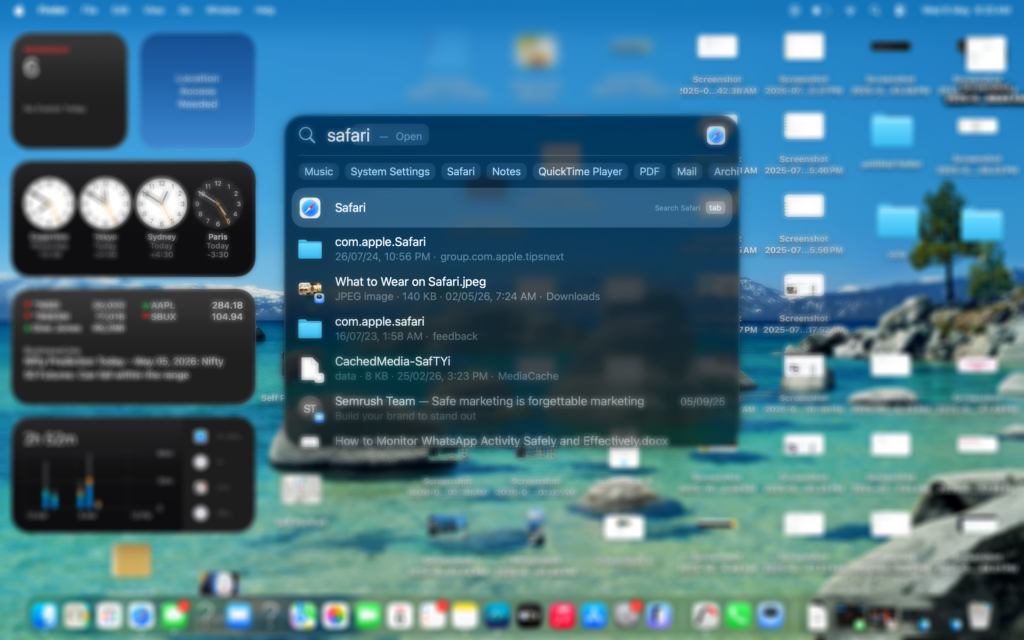
Small trick: if you press ⌘ + Space and the result you want isn’t first, just type one more letter. Spotlight learns. After a week of regular use, it predicts your top three apps from one or two characters. And on macOS Tahoe, you can hit ⌥ + ⌘ + Space to jump straight to Finder Search, which is handy when you want files specifically, not apps.
Switching Between Apps Without Lifting My Hand
This is the combo that pretty much replaced my dock. Two shortcuts, used together, cover 95% of app-switching situations:
- ⌘ + Tab — switch between open apps. Hold ⌘ and tap Tab to cycle forward, Shift + Tab to go backward.
- ⌘ + ` (the backtick key, top-left under Esc) — switch between windows of the same app.
That second one was a revelation when I discovered it. I used to have three Chrome windows open and use Mission Control to find the right one. Now I just stay in Chrome and tap ⌘ + ` until I land on the window I need. The animation is instant and my brain never has to leave what I’m doing.
A mistake I made early on: I’d hold ⌘ + Tab and panic-release the moment I saw the right app, then end up in the wrong one. The fix is dumb but useful — keep holding ⌘, and use the arrow keys to pick the app you actually want before letting go. You can also press Q while holding ⌘ to quit the highlighted app without leaving the switcher.
Screenshots, But Done Properly
I take 30 to 50 screenshots a day for work. The wrong way to do this is opening some screenshot app from the dock. The right way is to learn four shortcuts and never think about it again:
- ⌘ + ⇧ + 3 — capture the entire screen
- ⌘ + ⇧ + 4 — drag to capture a specific area
- ⌘ + ⇧ + 4, then Spacebar — capture a single window cleanly (with that nice drop shadow)
- ⌘ + ⇧ + 5 — opens the full screenshot toolbar with screen recording, timer, and save-location options
The Spacebar trick is the one most people miss. Press ⌘ + ⇧ + 4, hit Space, and your cursor turns into a tiny camera. Click any window — clean shot, no manual cropping, no extra tabs in the background showing through. The screenshot lands on your desktop with a timestamped filename.
Bonus tip I figured out by accident: add ⌃ (Control) to any of those shortcuts — for example ⌘ + ⌃ + ⇧ + 4 — and the screenshot goes straight to your clipboard instead of saving as a file. I use this constantly when pasting into Slack threads and Notion pages. No more cleanup of cluttered desktops.
The Window Management Combo I Learned Way Too Late
For about a year I thought “minimize” and “hide” were the same thing. They’re not, and the difference matters once you have a lot going on across multiple apps.
- ⌘ + M — minimizes the current window into the dock. Annoying to get back, honestly.
- ⌘ + H — hides the current app entirely. ⌘ + Tab brings it back instantly.
- ⌘ + ⌥ + H — hides every other app and keeps only the current one visible.
That last one is gold for focus. When I have to actually finish writing something, I press ⌘ + ⌥ + H and suddenly there are no Slack pings, no half-open browsers begging for attention. Just me and the doc. It feels like the macOS version of “Do Not Disturb,” but for windows.
I now avoid ⌘ + M almost entirely. Hiding beats minimizing. It just feels lighter — the app is still “running” in memory, the dock stays clean, and the come-back is instant.
macOS Tahoe 26 Window Tiling (New In 2026)
One of the best things in macOS Tahoe 26 is finally-good window tiling, and it has a keyboard combo I now use constantly:
- ⌘ + ⌥ + Right Arrow — tile the current window to the right half of the screen
- ⌘ + ⌥ + Left Arrow — tile to the left half
- ⌘ + ⌥ + Up Arrow — maximize (no more green-dot hunting)
- ⌘ + ⌃ + Up Arrow — Mission Control, where you can drag windows between Spaces
Drag a window to the edge of the screen on Tahoe and you’ll get a snap preview. But the keyboard route is faster and feels deliberate. If you’re coming from Windows, this is the spiritual equivalent of Win + Left/Right, and it works just as well on a 13-inch MacBook as it does on a 32-inch display.
Force-Quitting Without Hating Yourself
We all have that moment when an app freezes, the rainbow wheel starts spinning, and you start clicking the red dot like a person stuck in an elevator mashing the door-close button. The civilized way to handle it:
⌘ + ⌥ + Esc opens the Force Quit menu with a list of every running app. Pick the one that’s frozen, hit Return, move on with your life. It is the single most underrated troubleshooting shortcut on macOS.
There’s also ⌘ + ⌥ + ⇧ + Esc (held for about two seconds), which force-quits whatever app is in front without even asking. I use this rarely because it’s a sledgehammer, but in true emergencies when even the Force Quit panel won’t appear, it has saved me from a hard reboot more than once.
Finder Shortcuts That Feel Like Cheats
Finder is one of those apps I avoided for ages because clicking through it felt slow. Then I learned a handful of shortcuts and now I prefer it to most file managers I’ve used. Here are the ones I run on autopilot:
- ⌘ + ⇧ + . — toggles hidden files on and off (essential for anyone touching config files)
- ⌘ + Delete — moves the selected file to Trash
- ⌘ + ⇧ + Delete — empties the Trash
- ⌘ + ⌥ + V — moves a file (cut + paste). Plain ⌘ + V only copies.
- ⌘ + D — duplicates the selected file or folder
- ⌘ + I — Get Info panel (great for checking file size, dates, permissions)
- ⌘ + ⇧ + G — Go to Folder (type a path like
/usr/local) - ⌘ + Up Arrow — jumps to the parent folder
- ⌘ + Down Arrow — opens the selected folder or file
- Spacebar — Quick Look preview (huge when scanning through PDFs and images)
The ⌘ + ⌥ + V one took me forever to discover. For two years I was copy-pasting files and then manually deleting the originals like an animal. Once you cut-paste-move properly, you start to feel like you have actual control over the file system rather than dragging things around with a digital finger.
Text Editing Tricks That Saved My Wrists
I write a lot. These are the ones I use without thinking, and they’ve genuinely cut the fatigue I used to feel after a long drafting session. The pattern is simple: hold one of the modifier keys and an arrow key to move the cursor in bigger jumps.
- ⌥ + Left/Right Arrow — jump one word at a time instead of one letter
- ⌘ + Left/Right Arrow — jump to the start or end of the line
- ⌘ + Up/Down Arrow — jump to the start or end of the entire document
- Add ⇧ to any of those to select as you go (so ⌥ + ⇧ + Right selects the next word)
- Fn + Delete — forward delete (deletes the character to the right of the cursor; great on MacBooks with no dedicated Delete key)
- ⌃ + K — kill from the cursor to the end of the line (a hidden gem carried over from Emacs)
The one that surprised me most is dictation. On macOS Tahoe, you turn it on with Fn + D (or just double-press Fn on a MacBook with the Globe key). When my fingers are tired late at night, I just talk and let the Mac type. It’s not perfect — it still mangles “Spotlight” about one time in five — but for first drafts it’s a genuinely underrated tool, and the new on-device model in Tahoe is noticeably better than the old cloud one.
One last text-editing power move: the emoji picker. ⌃ + ⌘ + Space opens the Emoji & Symbols viewer from anywhere on the system. I use this in chat, in code comments, in filenames, and in articles like this one. It feels like a small party trick every time.
The Browser Shortcut I Use Maybe 50 Times a Day
If you spend any real time in Chrome, Arc, Brave, or Firefox, learn these. They work the same in basically every browser on macOS, because they all honor the standard cross-browser shortcuts.
- ⌘ + T — open a new tab
- ⌘ + W — close the current tab
- ⌘ + ⇧ + T — reopen the tab you just closed (a genuine lifesaver)
- ⌘ + L — jumps the cursor to the address bar so you can type a URL or search
- ⌘ + R — reload the current page
- ⌘ + 1 through ⌘ + 9 — jump to the 1st through 9th tab in the current window
- ⌘ + ⌥ + Left/Right Arrow — move between tabs in order
The ⌘ + ⇧ + T one is the one I want everyone to know. I have recovered countless tabs I shut by accident with this shortcut — and on most browsers, it actually works multiple times in a row, walking you back through your last ten or so closed tabs.
Safari-Specific Shortcuts Worth Knowing
If you’ve moved (or come back) to Safari on macOS Tahoe, it has a handful of shortcuts that Chrome doesn’t, and they actually save time once you know they exist:
- ⌘ + ⇧ + — show or hide the Favorites Bar
- ⌘ + ⇧ + R — toggle Reader View on the current page (strips ads, sidebars, junk)
- ⌘ + ⇧ + L — show or hide the Reading List sidebar
- ⌘ + ⌥ + L — open Downloads
- ⌘ + 1, 2, 3 — switch between your Top Sites, Start Page, and Reading List landing tabs
- ⌘ + / — open the current site in Safari’s Quick Website Search field
Reader View alone is worth the switch for me. Hitting ⌘ + ⇧ + R on a long-form article strips out ads, autoplay videos, and newsletter popups, leaving just the text in a clean column. It’s the closest thing to “read mode” that I get on a desktop browser.
Symbols and Accents (The Option Key Magic)
This is the section I wish someone had shown me in my first month on a Mac. The Option key is basically a hidden second keyboard, and it’s the answer to almost every “how do I type a special character” question. The pattern is consistent: hold ⌥ (sometimes plus ⇧) and tap a letter or number to get a different glyph.
| Shortcut | Symbol | Common Use |
|---|---|---|
| ⌥ + E, then letter | ´ (acute) | é, á — Spanish, Portuguese, French accents |
| ⌥ + I, then letter | ˆ (circumflex) | ê, î — used in French and Vietnamese |
| ⌥ + N, then letter | ˜ (tilde) | ñ, ã — Spanish, Portuguese |
| ⌥ + U, then letter | ¨ (umlaut) | ü, ö — German and Turkish |
| ⌥ + C | ç | c-cedilla, French and Portuguese |
| ⌥ + ⇧ + K | (Apple logo) | Fun, branding, watermarks |
| ⌥ + G | © | Copyright symbol |
| ⌥ + R | ® | Registered trademark |
| ⌥ + 2 | ™ | Trademark |
| ⌥ + Y | ¥ | Yen sign |
| ⌥ + 5 | ∞ | Infinity |
| ⌥ + = | ≠ | Not equal to |
| ⌥ + ⇧ + = | ± | Plus-minus |
| ⌥ + L | ¬ | Logical NOT |
The accent sequence is a little weird at first. You press ⌥ + E, release, and then tap the letter you want accented. The accent marker appears next to your cursor and waits for the vowel. It feels awkward the first five times, then becomes second nature. For anything more exotic (math symbols, obscure CJK characters, or emoji of the “fox falling off a tree” variety), the ⌃ + ⌘ + Space Character Viewer is the next stop.
Sleep, Lock, and Shutdown Shortcuts
This is the section that gets asked about the most in forums and is somehow missing from half the “best Mac shortcuts” lists out there. When you step away from your Mac, the right keyboard combo locks or sleeps it without you having to dig through the Apple menu.
- ⌃ + ⌘ + Q — lock the screen immediately (keeps apps running, requires password to come back)
- ⌥ + ⌘ + Power button — put the display to sleep (apps still running, low power)
- ⌃ + ⇧ + Power button — force the display to sleep on newer MacBooks without an eject key
- ⌃ + Power button — bring up the Restart / Sleep / Shut Down dialog box
- ⌃ + ⌘ + Power button — force-restart your Mac (last resort only)
I use ⌃ + ⌘ + Q every time I leave my desk, even at home. It became muscle memory within a week. Before that, I was clicking the Apple menu → Lock Screen, which is roughly three seconds of my life I’ll never get back. On a Touch ID MacBook, you can also just tap the Touch ID sensor briefly while the screen is awake to lock — it’s a hidden bonus behavior Apple added a few macOS versions back.
Accessibility Shortcuts Everyone Should Know
I don’t use these daily, but I keep them memorized because they bail me out when I’m staring at a screen that’s too bright at 11 p.m. or when a presentation is due in ten minutes and I need to zoom in fast. macOS has some genuinely good accessibility shortcuts built into the system level:
- ⌃ + ⌥ + ⌘ + 8 — toggle Invert Colors (inverts the entire display instantly)
- ⌃ + ⌥ + ⌘ + , (comma) — reduce contrast
- ⌃ + ⌥ + ⌘ + . (period) — increase contrast
- ⌘ + ⌥ + + — zoom in (with Zoom enabled in Accessibility settings)
- ⌘ + ⌥ + 8 — toggle Zoom on and off
- Fn + Tab (in some dialogs) — moves focus through all controls, useful for keyboard-only navigation
- ⌃ + F5 or Fn + F5 — open Accessibility Shortcuts panel
The Invert Colors combo is a fantastic dark-mode hack for apps that don’t have one. The Zoom toggle is also brilliant if you ever need to record a UI demo and want the audience to see what’s on a 13-inch screen at full size. These are easy to enable in System Settings → Accessibility, and once they’re on, the shortcuts are global.
A Mistake I Made For Months
For the longest time, I’d press ⌘ + Q to “close” an app — and then wonder why my Mac kept eating RAM. ⌘ + Q quits the app entirely, freeing its memory. ⌘ + W just closes the current window or tab, leaving the app itself running.
I had this habit of pressing ⌘ + Q on Chrome when I just wanted to close one tab. It would shut down the whole browser, all my tabs gone (well, until I learned ⌘ + ⇧ + T existed). Now I use:
- ⌘ + W to close a window or tab
- ⌘ + Q only when I genuinely want the app gone for good (Slack, Mail, anything memory-hungry)
Tiny distinction. Took me embarrassingly long to internalize. If you’re coming from Windows, the difference is roughly the same as the difference between clicking the X on a window and choosing “Exit” from the File menu. Once you get it, you’ll never mix them up again.
Locking The Screen Without Doing The Whole Apple-Menu Dance
When I step away from my Mac, I want it locked instantly. The shortcut:
⌃ + ⌘ + Q — locks the screen immediately.
I use this every time I leave my desk, even at home. It became muscle memory within a week. Before this, I was clicking the Apple menu → Lock Screen, which is roughly three seconds of my life I’ll never get back. If your Mac has Touch ID, you can also press the Touch ID button briefly while the system is awake — it locks instantly without going to sleep.
Coming From Windows? Here’s Your Cheat Sheet
If you just switched from a PC, the muscle memory you built up over the years can work against you for a week or two. Almost every Windows Ctrl shortcut has a Mac equivalent, and they’re usually in the same place. Print this table, tape it next to your trackpad, and within a month you won’t look at it again.
| Windows Shortcut | Mac Equivalent | What It Does |
|---|---|---|
| Ctrl + C | ⌘ + C | Copy |
| Ctrl + X | ⌘ + X | Cut |
| Ctrl + V | ⌘ + V | Paste |
| Ctrl + Z | ⌘ + Z | Undo |
| Ctrl + Y | ⌘ + ⇧ + Z | Redo |
| Ctrl + A | ⌘ + A | Select all |
| Ctrl + S | ⌘ + S | Save |
| Ctrl + F | ⌘ + F | Find |
| Alt + Tab | ⌘ + Tab | Switch apps |
| Alt + F4 | ⌘ + Q | Quit active app |
| Win + L | ⌃ + ⌘ + Q | Lock screen |
| Win + D | F11 (or Fn + F11) | Show desktop |
| Win + E | ⌘ + N (in Finder) | Open file explorer |
| Print Screen | ⌘ + ⇧ + 3 or 4 | Screenshot |
| Ctrl + Right Arrow | ⌥ + Right Arrow | Jump one word right |
The two that trip people up most are Alt + Tab → ⌘ + Tab (the symbols are different but the behavior is the same) and Alt + F4 → ⌘ + Q. On Windows, Alt + F4 closes a window. On Mac, ⌘ + W does that. ⌘ + Q is the full-app quit. Get that one right and you’ve already eliminated 80% of the muscle-memory friction.
Before vs After: Honest Numbers
I tracked this for fun over a couple of weeks early on in my Mac journey. The numbers were not what I expected, in a good way:
- Before learning shortcuts: I touched the trackpad somewhere around 800 to 1,000 times a day. Switching apps felt physical. My right wrist used to ache by evening.
- After: Probably 150 to 250 trackpad touches a day, mostly for things shortcuts genuinely can’t do (scrolling, drawing, light browsing). Wrist pain mostly gone. Work feels noticeably less draggy.
It’s not a dramatic productivity transformation — I’m not suddenly finishing a day’s work in two hours. But the friction is gone. That matters more than I expected. The mental cost of breaking flow to reach for a trackpad is bigger than the seconds suggest.
What Didn’t Work For Me
A few shortcuts I tried to force into my routine and eventually gave up on. Sharing these because it’s easy to read a list of “essential” shortcuts and assume you’re doing it wrong if they don’t click for you:
- Mission Control via keyboard (⌃ + Up Arrow) — I just prefer the trackpad swipe-up gesture. Some things really are faster with fingers.
- Custom shortcuts via System Settings — I tried remapping a bunch and ended up confusing myself. Now I stick to defaults so my muscle memory works on any Mac I touch.
- ⌘ + ⌥ + D to toggle the dock — felt cool, used it twice, never again.
Lesson: don’t try to memorize 50 shortcuts at once. Pick five, use them for a week until they’re automatic, then add five more. That’s literally how I built up the list above. Trying to learn the whole cheat sheet in one sitting is a recipe for abandoning it in three days.
My Quick Cheat Sheet
Print this table, stick it on your monitor for a week, and after that you won’t need it. These 15 are the ones that cover roughly 80% of my daily keyboard use on macOS Tahoe.
| Shortcut | Action |
|---|---|
| ⌘ + Space | Open Spotlight (apps, files, math, search) |
| ⌘ + Tab | Switch between open apps |
| ⌘ + ` | Switch windows within the same app |
| ⌘ + ⇧ + 4 | Screenshot a region |
| ⌘ + ⇧ + 4 + Space | Screenshot a clean window |
| ⌘ + ⌥ + H | Hide every app except the current one |
| ⌘ + ⌥ + Esc | Open Force Quit menu |
| ⌘ + ⇧ + T | Reopen the last closed tab |
| ⌘ + ⇧ + . | Show or hide hidden files in Finder |
| ⌃ + ⌘ + Q | Lock screen instantly |
| ⌘ + ⌥ + Right Arrow | Tile window to the right (Tahoe 26) |
| ⌥ + Left/Right Arrow | Jump cursor one word |
| Fn + D | Start dictation (macOS Tahoe) |
| ⌃ + ⌘ + Space | Open Emoji & Symbols viewer |
| ⌘ + Z | Undo (and ⌘ + ⇧ + Z to redo) |
Frequently Asked Questions About Mac Keyboard Shortcuts
What are the most useful Mac keyboard shortcuts?
The five most useful Mac keyboard shortcuts are: ⌘ + Space (open Spotlight), ⌘ + Tab (switch apps), ⌘ + C and ⌘ + V (copy and paste), ⌘ + Z (undo), and ⌘ + ⇧ + 4 (screenshot a region). These five cover the majority of everyday tasks on macOS.
What is the difference between Cmd+H and Cmd+M on a Mac?
⌘ + H hides the current app entirely — it disappears from the screen and the dock, but stays running in memory. ⌘ + M minimizes the current window into the dock as a small icon. Hiding is usually better because ⌘ + Tab brings the app back instantly, while a minimized window needs a click to restore.
How do I take a screenshot on a Mac?
Press ⌘ + ⇧ + 3 to capture the full screen, ⌘ + ⇧ + 4 to drag-select a region, ⌘ + ⇧ + 4 then Spacebar to capture a single window, and ⌘ + ⇧ + 5 to open the full screenshot and recording toolbar. Add ⌃ (Control) to any of these to copy the screenshot to your clipboard instead of saving as a file.
How do I force quit an app on a Mac?
Press ⌘ + ⌥ + Esc to open the Force Quit Applications window, select the frozen app, and click Force Quit. For a more immediate option, hold ⌘ + ⌥ + ⇧ + Esc for about two seconds to force-quit the frontmost app without a dialog.
How do I lock my Mac screen with the keyboard?
Press ⌃ + ⌘ + Q to instantly lock your Mac screen. Your apps keep running in the background and you’ll need your password (or Touch ID) to get back in. On a Mac with Touch ID, you can also tap the Touch ID sensor briefly to lock.
What is Ctrl + F4 on a Mac?
On a Mac, ⌃ + F4 does not have a standard universal shortcut. It works inside some apps — for example, in many Windows-style apps ported to macOS, ⌃ + F4 closes the active window or document. For a true close-window shortcut, use ⌘ + W instead.
How do I show special characters or accents on a Mac?
Press ⌃ + ⌘ + Space to open the Emoji u0026amp; Symbols viewer from anywhere in macOS. For common accents, hold ⌥ + E (acute), ⌥ + I (circumflex), ⌥ + N (tilde), or ⌥ + U (umlaut), release, then tap the vowel you want accented.
Final Thoughts After Using These Daily
The thing nobody tells you about Mac keyboard shortcuts is that the benefit isn’t really speed — it’s flow. When you’re not constantly reaching for the trackpad, your brain stays inside whatever you’re doing. Writing feels like writing. Coding feels like coding. You stop context-switching at a hand level, and that compounds throughout the day in ways that are hard to measure but easy to feel.
If you’re new to Mac (or just never bothered to learn this stuff), start with ⌘ + Space and ⌘ + Tab. Honestly, those two alone changed how I use my MacBook. The rest is polish. Spend a week with those two, add ⌘ + ⇧ + 4 for screenshots and ⌃ + ⌘ + Q for locking, and you’ll already be faster than 90% of Mac users at a coffee shop.
I still discover new ones occasionally — last month I learned about the new window tiling shortcuts in macOS Tahoe 26 (⌘ + ⌥ + arrows) and felt like I’d unlocked a new operating system. There’s always one more shortcut hiding somewhere, and that’s kind of the fun of it. Every Mac keyboard shortcut you add to your muscle memory is a tiny gift to your future self.