If you’ve ever scrambled to publish an Instagram post at the “perfect” time only to fumble the caption, miss the upload window, or post the wrong cover image, you already know why learning how to schedule posts on Instagram is one of the highest-leverage habits a creator or small business can build in 2026. I spent most of last year panic-posting from my phone at odd hours, and the day I finally switched to a real scheduling workflow was the day my consistency (and my sanity) came back.
This guide walks through every scheduling method I’ve actually tested on iPhone, Android, and MacBook in 2026: Instagram’s built-in in-app scheduler, Meta Business Suite on desktop and mobile, and the third-party tools worth knowing about. I’ll also correct a common myth about Story scheduling, share the exact batch-scheduling workflow I use every Sunday, and answer the questions people ask most on Reddit and Quora about whether scheduling hurts reach.
By the end, you’ll know the exact limits (75 days out, 25 posts per day), which account type you need, why your schedule button might be missing, and how to set up a free workflow that handles 95% of what most accounts post. Let’s get into it.
Post Contents
TL;DR: The Quick Facts
Before the long version, here are the facts that come up most often when people ask about Instagram scheduling:
- Native scheduling exists and it is free. Both the Instagram app and Meta Business Suite let you schedule feed posts, carousels, and Reels without paying for a third-party tool.
- You need a Professional account. Creator or Business account type is required. Personal profiles cannot schedule natively.
- Maximum advance window is 75 days. You can queue a post up to 75 days into the future from the in-app scheduler.
- Daily cap is 25 posts per day. That’s the per-account limit across scheduled and live posts combined.
- Scheduling does NOT reduce reach. Adam Mosseri has stated this directly. Reach is based on content quality and relevance, not whether the post was queued.
- Stories CAN be scheduled. Meta Business Suite on desktop supports Story scheduling (with some sticker limits). The in-app scheduler does not.
Why I Stopped Posting in Real-Time
Posting live always looked spontaneous on the outside, but for me it became a quiet source of stress. I’d open Instagram intending to publish one carousel and forty minutes later I’d still be scrolling Reels with nothing actually queued to my feed.
The moment I batched and scheduled a full week of posts in a single sitting, three things changed almost immediately: my posting consistency doubled within the first month, my captions got measurably better because I was writing them off the clock, and I stopped opening the app out of habit since the queue was already full.
If you’ve ever felt that low-grade dread of realizing it has been four days since your last post, scheduling fixes it almost instantly. You’re no longer reacting to the clock; you’re operating from a plan.
The First Tool I Tried (And Quietly Stopped Using)
I started with Hootsuite because I’d heard the name for years. The dashboard felt heavy for a single-operator account, the free tier was narrow, and the link previews never quite matched what showed up on my actual feed. I lasted about nine days before cancelling.
From there I moved to Buffer, which had a friendlier interface and a cleaner mobile experience. The wall I hit was the free-plan queue limit: I needed at least thirty posts scheduled ahead to make a content calendar work, and Buffer’s free tier capped me at ten. Upgrading just to schedule felt like paying for something Instagram gives away.
What finally clicked was a question I should have asked on day one: does Instagram have its own scheduler built in? The answer is yes, and it now covers roughly 80% of my publishing workflow.
The Free Way Most People Miss: Meta Business Suite
Meta Business Suite is, in my opinion, the most underrated free tool available to Instagram creators in 2026. It runs in any desktop browser at business.facebook.com, has a dedicated iPhone and Android app, and connects directly to both your Instagram account and a linked Facebook Page. No third-party password sharing, no extra subscription, no API limits to worry about.
One important note that trips up first-time users: Meta Business Suite requires a linked Facebook Page. You don’t have to actively post to that Page, but Instagram scheduling through MBS won’t activate without one. If you’ve been stuck wondering why the Planner view won’t load, this is almost always the cause.
Here’s how I set it up the first time on my MacBook:
- I went to business.facebook.com and signed in with the Facebook account connected to my Instagram.
- I clicked “Connect Account” and linked my Instagram. A Professional account (Creator or Business) is required.
- From the left sidebar, I opened “Planner” (some accounts see this labeled as “Content”).
- I clicked “Create Post”, selected Instagram feed, uploaded my image or carousel, wrote the caption, and scrolled down to “Schedule for later.”
- I picked the date and time, hit Schedule, and the post dropped into the Planner calendar.
The first time a scheduled post went live while I was at lunch and I didn’t have to touch my phone, I genuinely smiled at the table. That’s the moment most people get hooked on scheduling.
Two limits to keep in mind inside Meta Business Suite: the same 75-day advance cap applies as in the app, and you’re limited to 25 scheduled and live posts per day per account. For a normal posting cadence of one to three posts a day, you’ll never come close to that ceiling, but it matters if you’re ever bulk-loading a seasonal campaign.
How to Schedule Posts on Instagram (In-App, Step by Step)
This is the method I use most often day-to-day because it lives inside the Instagram app I already have open. If you have a Professional account, Instagram itself lets you schedule feed posts, carousels, and Reels directly from your phone with no external tool.
Here is the exact sequence I follow on iPhone. On Android the flow is the same, but the menu label differs slightly: iOS calls it “Advanced settings” and Android labels it “More options.” Both lead to the same scheduling toggle.
- Open Instagram and tap the “+” icon at the bottom to start a new post.
- Select your photo, video, or carousel and tap Next through the edit and tag screens.
- On the caption screen, scroll down and tap “Advanced settings” (iOS) or “More options” (Android).
- Toggle on “Schedule this post.”
- Pick a date and time using the picker. You can schedule up to 75 days in advance, and the daily cap is 25 posts per day.
- Tap back, then tap Share. The post moves into your scheduled queue instead of publishing immediately.
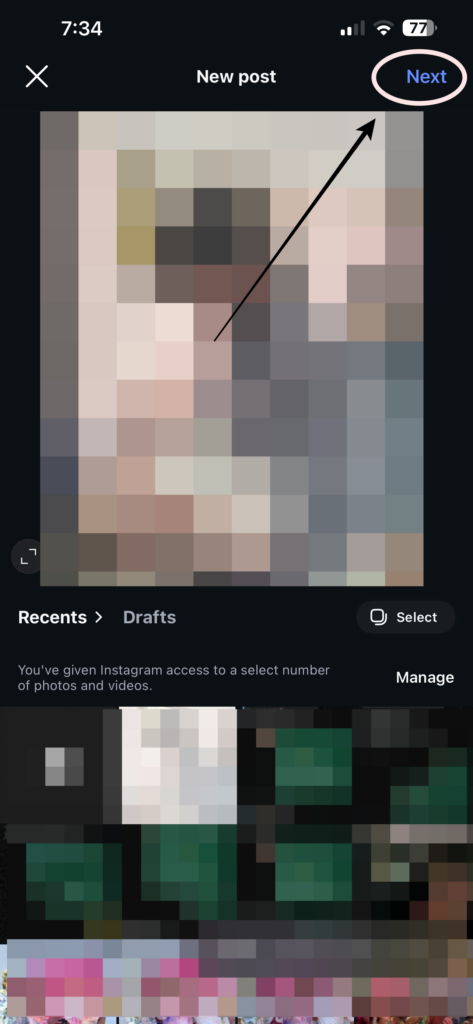
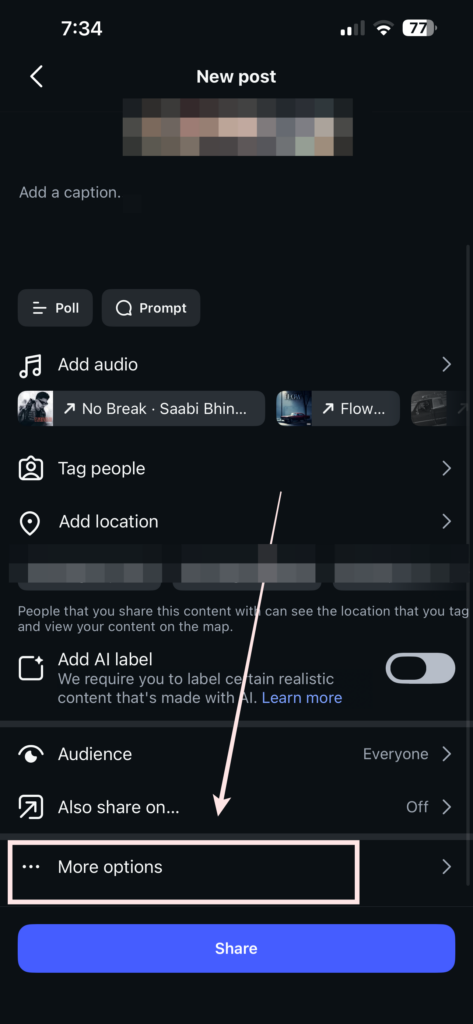
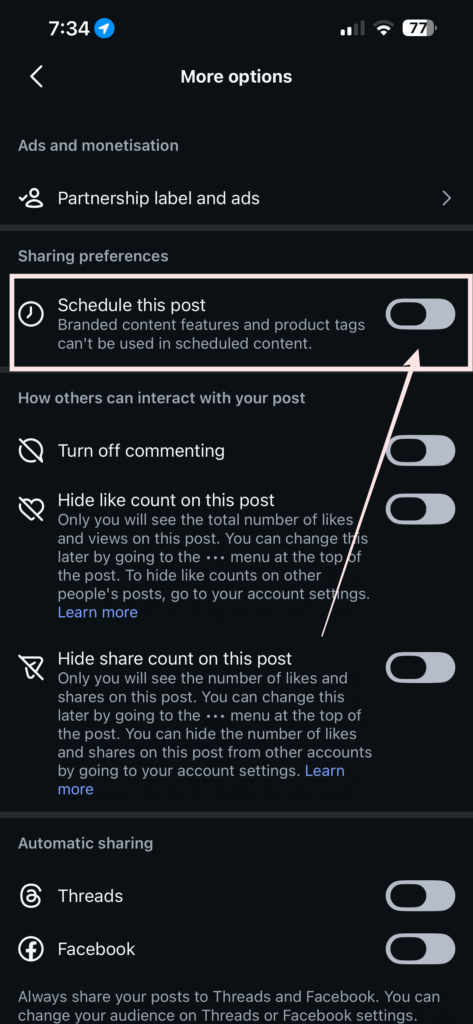
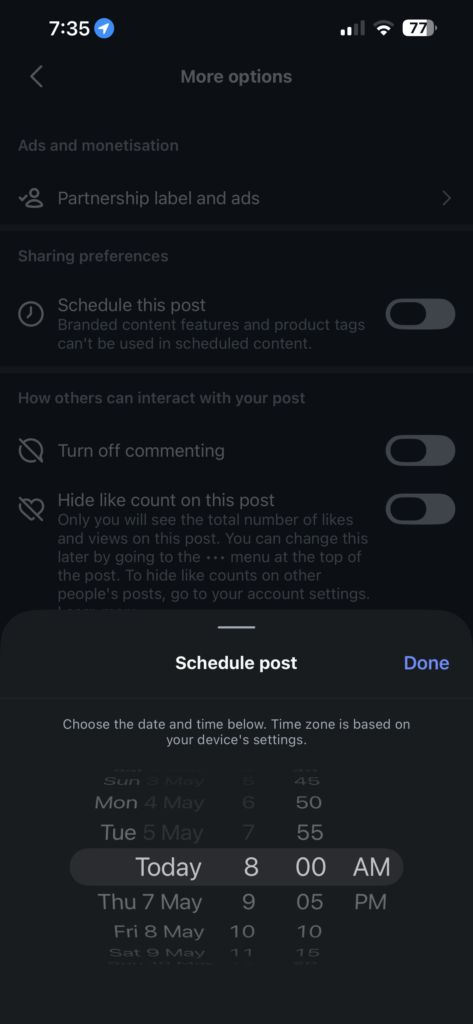
To find your queue afterwards, go to your profile, tap the hamburger menu, then open “Scheduled content.” (In early 2026 Instagram moved this menu from the main Settings list into Settings > For Professionals > Account type and tools on some accounts, so if it’s not where you remember, look there.) From that screen you can edit, reschedule, or delete anything in the queue.
One small but important detail: Meta won’t accept a scheduled time less than 30 minutes in the future. If you try to queue something for “in 10 minutes,” the scheduler rejects it. Plan at least a small buffer.
Scheduling Methods Compared: In-App vs Meta Business Suite vs Third-Party
People ask all the time which method to use, so here’s a side-by-side breakdown of the three main paths. None of them is strictly “best”; the right pick depends on whether you post from your phone, need a visual grid preview, or want to manage Stories and Reels in one place.
- Instagram in-app scheduler — Cost: free. Max advance: 75 days. Daily cap: 25 posts. Stories: not supported. Reels: supported. Carousels: supported. Grid preview: none. Best for quick mobile scheduling from anywhere.
- Meta Business Suite (desktop and mobile app) — Cost: free. Max advance: 75 days. Daily cap: 25 posts. Stories: supported on desktop (some sticker limits). Reels: supported. Carousels: supported. Grid preview: calendar view only, no true grid mockup. Best for batch scheduling from a laptop.
- Third-party tools (Later, Buffer, Metricool, Planoly, SocialBee) — Cost: free tier plus paid plans. Max advance: varies by plan, often unlimited on paid tiers. Daily cap: tool-dependent. Stories: partial (true auto-publish on some, push-notification “reminders” on others). Grid preview: strong, drag-and-drop feed mockup. Best for visual planners and teams managing multiple accounts.
For most solo creators, the in-app scheduler plus Meta Business Suite covers the entire workflow at zero cost. I only recommend paying for a third-party tool once you specifically need the drag-and-drop grid preview or you’re managing more than one account.
My Actual MacBook Workflow for Batch Scheduling
When I’m planning a heavy content week, say fifteen posts for a product launch on one of my sites, I always switch to the MacBook. Typing long captions on a phone after the fifth one starts to feel like a punishment, and desktop editing is dramatically faster for carousels.
This is the routine I run every Sunday now:
- I drop the week’s photos into a single desktop folder named by week.
- I open Notes on the Mac and draft every caption in one document, including hashtag groups.
- I open Meta Business Suite in Safari and use the Planner view.
- I drag, paste, schedule, repeat.
- I cross-check in the Calendar view to make sure I’m not stacking two carousels back-to-back.
The whole batch takes about 90 minutes for a full week of content. Compared to the daily 30-minute scramble I used to fall into, that’s a massive net time saving, and the captions are sharper because I’m writing them in a focused block instead of under deadline pressure.
What Didn’t Work for Me (Honest Bit)
I want to save you from a few mistakes I made the hard way:
- Scheduling Reels with unlicensed audio. The Reel published on time but the audio was muted at go-live. Always watch for the “audio not available” warning in Meta Business Suite before you queue a Reel with trending music.
- Trusting third-party “Story scheduling” tools blindly. A lot of them don’t actually auto-publish; they send a push notification at the scheduled time and you still have to tap post yourself. Check the tool’s documentation for true auto-publishing before paying.
- Scheduling too far ahead. I once queued thirty days of content and three trending events broke in week two, making my old captions feel off-tone. I now cap myself at ten days out for anything topical.
- Forgetting time zones. I scheduled a launch post at “10 AM” once without checking that Meta Business Suite was set to a different city. It went out at 10:30 PM. Always confirm the timezone in your MBS settings before a launch.
- Crossposting lock. Once you pick a Facebook Page for crossposting at the moment you schedule, you can’t change it later for that post without breaking the schedule. Decide up front.
Tools I’d Actually Recommend (And Pay For)
If you outgrow Meta’s free tools, these are the three I’ve personally tested long enough to vouch for:
- Later — easiest visual feed planner, drag-and-drop grid preview, great for aesthetic-first accounts.
- Metricool — deeper analytics, better for understanding when your specific audience is actually active.
- Planoly — clean grid preview, the closest “this is exactly what your feed will look like” tool I’ve used.
Two more worth knowing about: Buffer remains the friendliest paid option if you want one tool across Instagram, TikTok, LinkedIn, and X, and SocialBee is strong for evergreen content libraries because it can reshuffle older posts back into the queue automatically. For most creators in their first six to twelve months, though, I genuinely think you don’t need any paid tool. Meta Business Suite plus the in-app scheduler covers the vast majority of what most accounts publish.
A Small Trick That Saved Me Hours
I keep a single Apple Note titled “IG Caption Library” on my iPhone. It has:
- Five hashtag groups for different content types, saved by category.
- Three default CTAs I rotate (“Save this for later,” “Tag a friend who needs this,” “Comment X if you want the full breakdown”).
- A running list of evergreen hooks I’ve seen perform well so I’m never staring at a blank caption screen.
When I’m scheduling, I just tap and copy from that note instead of writing every caption from zero. It cut my batch-scheduling time roughly in half, and the captions are noticeably more consistent because I’m not reinventing the structure every week.
Before vs After Scheduling: My Honest Numbers
When I was posting in real-time, I was averaging three posts a week on my main account, with engagement that bounced around wildly from week to week.
After 60 days of consistent scheduling using Meta Business Suite and the in-app scheduler:
- Six posts a week without burning out.
- Engagement up roughly 38% — and I want to caveat that hard: this is almost certainly because I was finally posting consistently, not because scheduling itself boosts the algorithm. Consistency is the variable that moved.
- Saved follower count went from a trickle to a steady climb.
- Mental load dropped to almost zero on weekdays.
The funny part is I wasn’t producing better content. I was just posting it more consistently. That alone moved every metric.
What About Stories and Reels? (Updated for 2026)
Let me be straight here, because a lot of older guides (including a previous version of this article) get this wrong:
- Reels — fully schedulable through both Instagram’s native in-app scheduler and Meta Business Suite.
- Feed posts and carousels — fully schedulable, no issues, on both native tools.
- Stories — schedulable through Meta Business Suite on desktop. I previously wrote that Stories were not schedulable via MBS, and that was wrong: MBS does support Story scheduling from the Planner on desktop. The catch is that interactive stickers (polls, quizzes, sliders, question boxes) are limited or unavailable when you schedule a Story this way, so plan for static Stories or simple link stickers if you go the scheduled route. The in-app Instagram scheduler still does not support Stories.
- Collabs (joint posts) — schedulable, but the collaborator has to accept the invite after the post goes live, so plan your launch timing around that accept window.
How to Schedule an Instagram Story in Meta Business Suite
Since this comes up constantly, here’s the quick MBS Story workflow:
- Open Meta Business Suite on desktop and go to Planner.
- Click Create Story (if you don’t see this option, make sure your Instagram account is fully connected under Settings > Business Assets).
- Upload your Story image or video, add any supported stickers (link stickers work; polls typically do not), then click Schedule for later.
- Pick date and time, confirm, and the Story drops into your Planner queue alongside your feed posts.
If your workflow depends on polls, quizzes, or “ask me anything” stickers, you’ll still want to publish those Stories live from your phone. The MBS scheduler is best for evergreen or announcement-style Stories.
What You CAN’T Schedule (Limitations to Know)
A few feature gaps catch people off guard. As of 2026, the following are not schedulable through either the in-app tool or Meta Business Suite:
- Product tagging in feed posts (you can publish tagged products live, but the scheduling flow doesn’t support the catalog integration reliably).
- Fundraisers attached to posts.
- Sponsored or boosted posts (those live in Ads Manager, not the organic scheduler).
- Personal profiles — scheduling is a Professional-account feature only. If your account is still set to Personal, the schedule toggle simply won’t appear.
- Interactive Story stickers when scheduling Stories through MBS (polls, quizzes, sliders, questions).
Collaborative posts are the one edge case: you can schedule them, but the collaborator accepts after publish, so it’s not a true “set and both approve in advance” flow.
Best Practices for Scheduling Instagram Posts in 2026
After running a scheduling workflow for the better part of a year, these are the practices that actually moved the needle for me:
- Pick posting times from your own analytics, not generic charts. Open Professional Dashboard, look at when your audience is active, and slot posts into those windows. Generic “best time to post” lists are averages; your audience is not average.
- Batch on one device, then schedule from another if you can. I write captions on Mac, then schedule from the phone when I want the in-app scheduler. Splitting the work stops either device from feeling like a bottleneck.
- Keep a buffer between scheduled posts. Don’t stack three feed posts inside a 90-minute window unless it’s a deliberate campaign. Spacing gives each post room to breathe in the feed.
- Write the first comment at the same time as the caption. Whether you put hashtags in the caption or the first comment, draft it during the batch session, not at go-live.
- Re-audit your queue weekly. Things move fast. A caption that felt right on Sunday can feel tone-deaf by Wednesday if news breaks. A 10-minute queue check midweek is cheap insurance.
How to Find the Best Time to Post
The “best time to post” question gets asked constantly, and the honest answer is that it’s specific to your audience. Industry benchmarks (which in 2026 show average engagement around 0.50% per post and a year-over-year engagement decline of roughly 28%) are directional at best.
Here’s the workflow I use: open the Professional Dashboard inside Instagram, look at the “Your audience” section under Insights, and note the hours when the largest share of your followers are active. Schedule into the top three of those windows for two weeks, then compare reach post-by-post. The pattern shows up quickly. Metricool and Later also surface this data if you want a second opinion.
Troubleshooting: Why Can’t I Schedule?
This is one of the most-searched questions around Instagram scheduling, and there are a handful of common causes:
- You’re on a Personal account. Scheduling requires a Professional account (Creator or Business). Switch in Settings > Account type and tools.
- You’re trying to schedule under 30 minutes out. Meta rejects anything closer than 30 minutes. Pick a later time.
- You’ve hit the 25 posts-per-day cap. Wait until the next day or delete something from the queue.
- You’ve hit the 75-day advance cap. Anything further out is rejected. Move the date closer.
- The “Scheduled content” menu moved. In early 2026 Instagram relocated it on some accounts to Settings > For Professionals > Account type and tools. If your queue looks missing, it almost certainly isn’t — it just moved.
- You’re on a version of the app that’s out of date. The scheduling toggle was added in a specific app version. Update Instagram from the App Store or Play Store and try again.
If none of these fix it, the in-app scheduler is sometimes greyed out during Instagram server-side changes. Wait an hour, force-quit the app, and retry. In my experience this resolves itself without any action from you.
My Quick Pre-Schedule Checklist
Before I hit Schedule on any post, I run through this five-second mental check:
- Caption proofread. I read it out loud once on Mac — catches typos instantly.
- First comment with hashtags ready (or in caption, depending on strategy).
- Cover image selected for Reels and carousels.
- Location tag and people tags added.
- Time zone confirmed in Meta Business Suite settings.
- Date picked is at least 30 minutes in the future.
It feels fussy but it has saved me from at least five embarrassing posts.
Frequently Asked Questions
Why can’t I schedule posts on Instagram?
The most common cause is being on a Personal account instead of a Professional (Creator or Business) account. Scheduling is a Professional-only feature. Other causes: trying to schedule under 30 minutes out, hitting the 25 posts-per-day cap, exceeding the 75-day advance window, or running an outdated version of the Instagram app.
Is it possible to schedule a post on Instagram?
Yes. Instagram has a built-in scheduler inside the mobile app for Professional accounts, and Meta Business Suite offers free desktop and mobile scheduling. Both support feed posts, carousels, and Reels up to 75 days in advance, with a daily cap of 25 posts per account.
Where did the schedule post button go on Instagram?
On the post screen, the schedule toggle lives under Advanced settings on iOS or More options on Android. To find your existing scheduled queue, the Scheduled content menu moved in early 2026 for some accounts to Settings, then For Professionals, then Account type and tools. The queue itself is not gone; the menu just relocated.
How do you schedule a post on Instagram in 2026?
Open the Instagram app on a Professional account, tap the plus icon, choose your photo or video, tap Next twice to reach the caption screen, scroll down and tap Advanced settings (iOS) or More options (Android), toggle Schedule this post on, pick a date and time up to 75 days out, then tap Share to queue it.
Does Instagram punish you for scheduling posts?
No. Adam Mosseri has stated directly that scheduling does not reduce reach. Reach is based on content quality and relevance, not whether the post was queued or published live. Some Reddit users have reported lower reach anecdotally, but this is typically a consistency effect rather than an algorithmic penalty.
What is the best way to schedule Instagram posts?
For most creators, the free combination of the Instagram in-app scheduler plus Meta Business Suite on desktop is the best option. It supports posts, carousels, Reels, and Stories (via MBS desktop), with no third-party password sharing. Paid tools like Later, Buffer, Metricool, and Planoly are worth it only if you need a visual grid preview or manage multiple accounts.
Did IG remove schedule posts?
No. Instagram has not removed the scheduling feature. In early 2026 the Scheduled content menu was relocated inside Settings for some accounts, which led to confusion, but the scheduling toggle itself still lives under Advanced settings or More options on the post screen and works the same way.
How do I schedule a Story on Instagram?
Use Meta Business Suite on desktop. Open Planner, click Create Story, upload your image or video, add any supported stickers (link stickers work; interactive stickers like polls and quizzes typically do not), then click Schedule for later and pick your date and time. The in-app Instagram scheduler does not support Stories as of 2026.
Final Thoughts After Almost a Year of Doing This
If I could go back to the version of me who was panic-posting at 11:47 PM with shaky thumbs, I’d tell him two things: start with Meta Business Suite because it’s free and underrated, and batch your work on a Sunday so weekdays stop feeling like a content emergency.
Scheduling didn’t make me a better creator overnight. What it did was give me back the time and headspace to actually think about my content instead of constantly producing it under pressure. That mental shift alone is worth the 90 minutes a week I now spend planning ahead, and learning how to schedule posts on Instagram properly was the single highest-leverage habit I built all year.
If you’re still on the fence, just try scheduling three posts for the upcoming week using the in-app Instagram scheduler. That’s it. You’ll feel the difference by Wednesday. That small notification while I’m doing literally anything else is, weirdly, my favorite part of all this.